Free Up iCloud Storage Without Paying for More
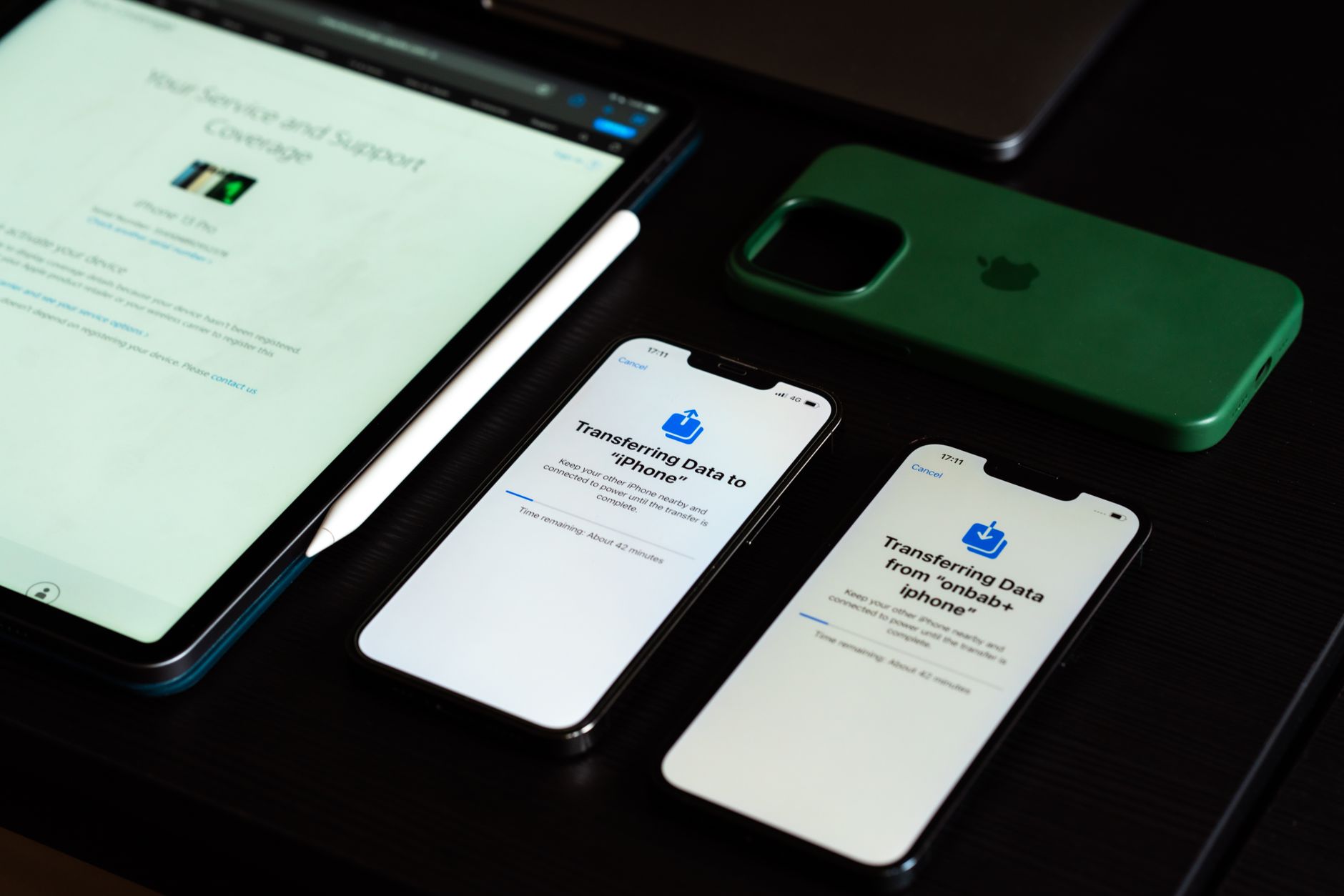
That “iCloud Storage Full” popup appears at the worst possible moment — right when you are about to take a photo, or when an important backup fails silently. Apple gives you 5 GB free and then nudges you toward a paid plan every fifteen minutes.
Before you give Apple more money, try clearing out the stuff you did not know was taking up space. Most people can recover several gigabytes in under ten minutes. Here is where to look.
Check What Is Actually Using Space
On iPhone: Settings → [your name] → iCloud → Manage Account Storage. You will see a color-coded bar showing exactly what is eating your storage. The usual suspects are Backups, Photos, and Messages. Write down the top three.
Delete Old Device Backups
This is the biggest hidden storage hog. If you have ever upgraded your iPhone, your old phone’s backup is probably still sitting in iCloud. Settings → iCloud → Manage Storage → Backups. You will likely see backups for devices you no longer own. Delete them. One old iPhone backup can be 3 to 5 GB.
While you are there, check which apps are being backed up. Does your banking app really need its data in iCloud? Probably not. Toggle off unnecessary apps and the backup size shrinks immediately.
Messages: Delete Old Attachments
Photos, videos, and GIFs sent through Messages pile up silently. Go to Settings → General → iPhone Storage → Review Large Attachments. You will find videos from three years ago that you watched once and forgot about. Delete them. You can also set Messages to auto-delete after 30 days or 1 year under Settings → Messages → Keep Messages.
Photos: Optimize Storage Instead of Deleting
Settings → Photos → Optimize iPhone Storage. This replaces full-resolution photos on your phone with smaller, device-optimized versions while keeping the originals in iCloud. It typically cuts photo storage use by 60-80% without you having to delete anything. You can still access the full-resolution version anytime with an internet connection.
Clear Out Shared Albums and Recently Deleted
Photos you delete go to a Recently Deleted folder where they sit for 30 days, still using space. Albums → Recently Deleted → Select → Delete All. Also check shared albums — they count against your storage even though you did not create them.
📋 Quick Summary: Delete old device backups first — often 3-5 GB each. Clear out old message attachments. Enable Optimize iPhone Storage for photos. Empty the Recently Deleted folder. Most people can free up 5-10 GB without losing anything important.