Stop Your Video Doorbell From Alerting You About Every Passing Car
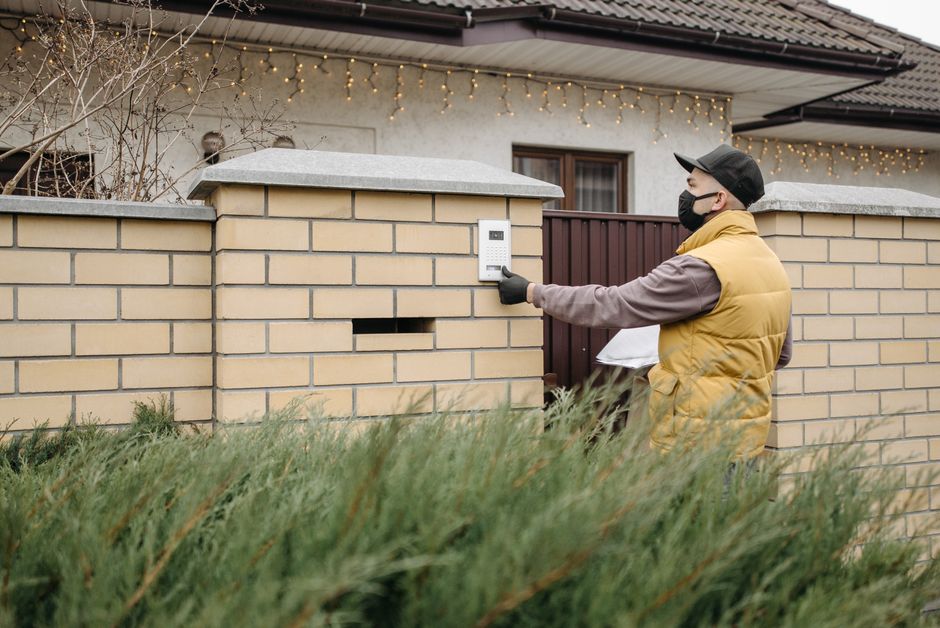
I installed a video doorbell and for the first week, I felt like I had a personal security guard. By week two, I wanted to throw it into the street. Every car that drove past. Every neighbor walking their dog. Every leaf blowing across the driveway. Ding. Ding. Ding. My phone was buzzing 40 times a day.
The problem was not the doorbell. It was the settings. Here is how to fix it.
1. Set Motion Zones
Most video doorbells let you draw motion detection zones on a grid overlay of your camera view. By default, the entire frame is active. You want to exclude: the sidewalk, the street, your neighbor’s driveway, tree branches that move in the wind. Draw your zone to cover only your actual walkway and doorstep. This single change cut my false alerts by about 70%.
2. Adjust Motion Sensitivity
Almost everyone leaves this at the default “high.” Turn it down to medium or even low. Test it by walking up to your door — if it still detects a person approaching, it is high enough. Cars and animals are larger or faster-moving; lowering sensitivity filters them out while still catching humans.
3. Enable Person Detection Only
If your doorbell offers person detection (Ring, Nest, and most newer models do), turn it on and disable general motion alerts. You do not need to know about every cat that walks by at 3am. Person detection uses AI to distinguish humans from everything else.
4. Scheduling
Set your doorbell to disable motion alerts during high-traffic hours. If your kids walk past the door 15 times between 4pm and 7pm, mute alerts during that window. You still get recordings — you just do not get notified every time.

📋 Quick Summary: Draw motion zones to exclude the street and sidewalk. Lower sensitivity to medium. Enable person detection only. Schedule quiet hours. From 40 false alerts a day to maybe 3-4 actual visitors.