Breathe New Life Into an Old Laptop for Free
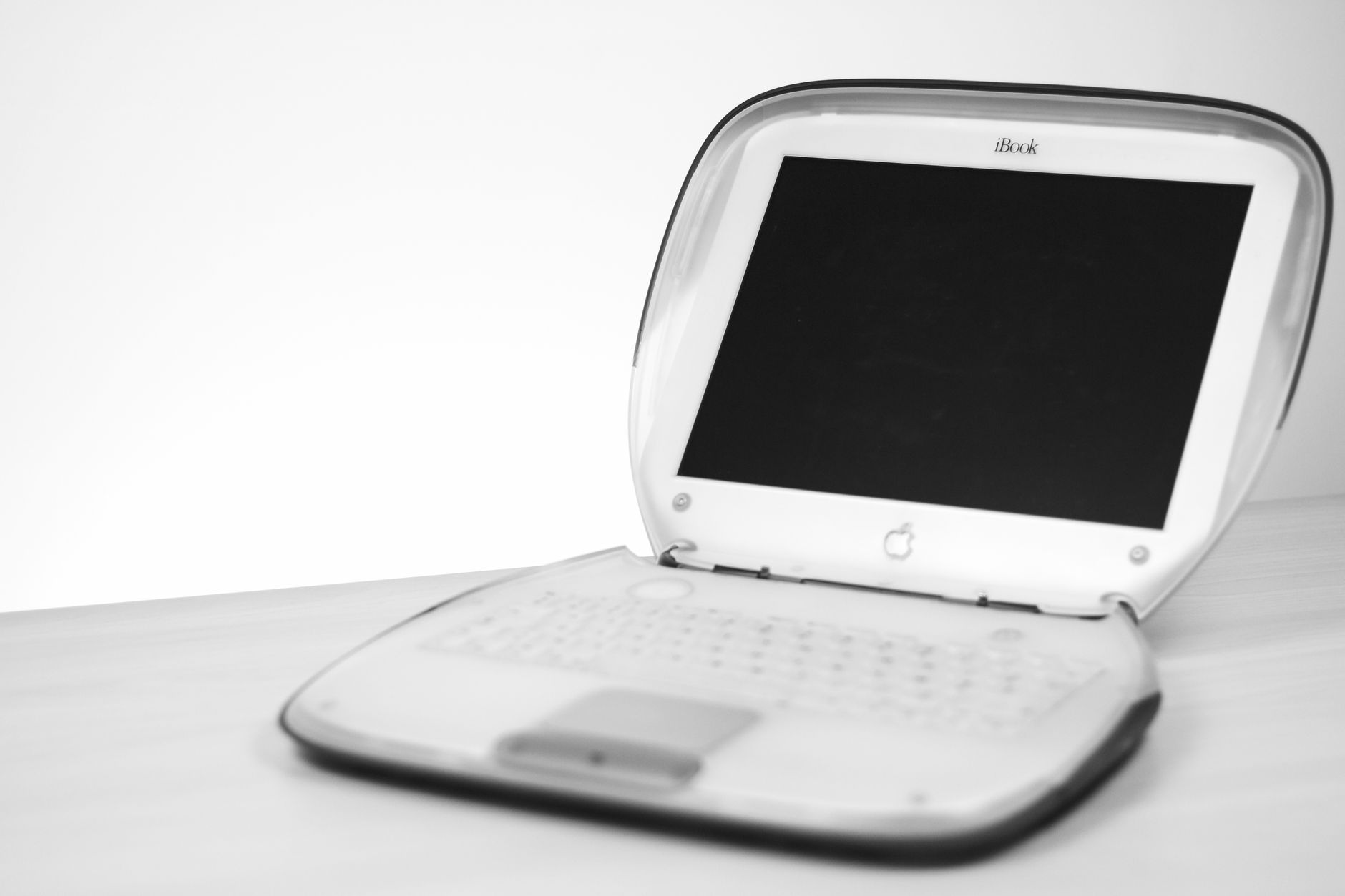
I have a 2014 ThinkPad that Windows 10 abandoned. Updates took an hour. Boot time was three minutes. Opening Chrome felt like asking a favor from an elderly relative. I was about to recycle it when a friend told me to try Linux.
That laptop now boots in twenty seconds. It is my daily writing machine, a media server, and a backup computer. I did not spend a dollar.
Step 1: Install a Lightweight Operating System
Windows gets heavier with every update. Linux Mint XFCE edition is the best option for old hardware. It looks and works like Windows, with almost no learning curve, and uses far fewer resources. Download from linuxmint.com. Use a free tool called Rufus to put it on a USB stick. Boot from USB (F12 or F2 during startup). Install. About thirty minutes total.
Chrome, Firefox, LibreOffice (free Microsoft Office alternative), and media players all work the same. You will not notice a difference except that everything is faster.
Step 2: Add an SSD (Optional)
If your old laptop still has a spinning hard drive, replacing it with an SSD is the single biggest upgrade possible. A 240GB SSD costs about twenty dollars. Boot times go from minutes to seconds.
Step 3: Repurpose for a Single Job
- Kitchen computer — recipes, shopping lists, music
- Kids computer — locked-down with parental controls
- Media server — connect to TV with HDMI, install Plex
- Retro gaming machine — install RetroPie
- Dedicated writing machine — no internet, no distractions

I use mine as a dedicated writing computer. No browser, no email. I open it, I write, I close it. Most focused I have been in years.
Quick Summary: Install Linux Mint XFCE (free, 30 minutes). Add a cheap SSD for dramatic speed. Repurpose as kitchen computer, kids machine, media server, retro gaming console, or dedicated writing tool.