The TV Setting That Makes Dialogue Actually Clear
I watched an entire season of a British crime drama with the subtitles on because I could not understand a word anyone was saying. The actors mumbled through thick accents while the background music swelled. My wife kept asking, “What did he say?” and I kept answering, “I do not know, read the subtitles.”
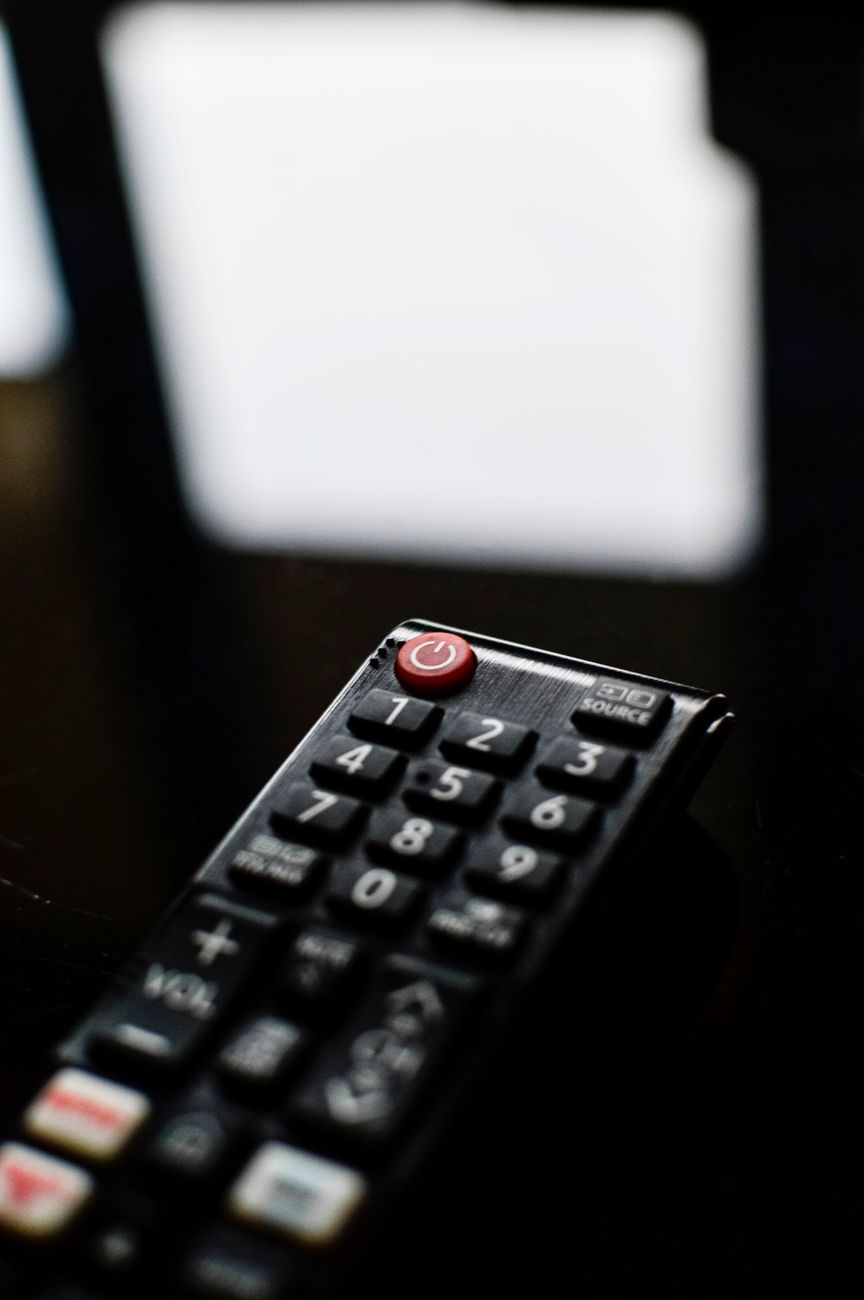
Then a sound engineer friend came over, grabbed the remote, and changed one setting. Suddenly I could hear every word. It was like someone had removed a blanket from the speakers.
The Problem With Modern TVs
Flat-screen TVs have terrible built-in speakers. They fire downward or backward because there is no room for forward-facing speakers in a panel that is half an inch thick. The speakers are small, underpowered, and pointed at your TV stand instead of your ears.
On top of that, modern TV shows and movies are mixed for surround sound systems — five speakers plus a subwoofer. When you play that audio through two tiny TV speakers, the center channel where dialogue lives gets buried under music and sound effects.
The One Setting That Fixes It
Go into your TV’s audio settings and look for something called “Dialogue Enhancement,” “Clear Voice,” or “Speech Clarity.” Different brands name it differently:
- Samsung: Settings → Sound → Expert Settings → Dialogue Enhancement
- LG: Settings → Sound → Sound Mode → Clear Voice
- Sony: Settings → Sound → Sound Adjustments → Voice Zoom
- Roku TV: Settings → Audio → Sound Mode → Dialogue
- Vizio: Menu → Audio → Volume Leveling → On (this compresses the dynamic range so loud sounds and quiet dialogue get closer together)
This setting boosts the mid-range frequencies where human voices live while slightly reducing the bass and treble that compete with speech. It is not a perfect fix, but it is better than reading subtitles for shows in your own language.
Other Settings to Check
Turn off “Virtual Surround” or “Spatial Audio.” These try to simulate surround sound with two speakers and end up making dialogue harder to hear. If you do not have actual surround speakers, turn this off.
Check the Equalizer. If your TV has a custom EQ, boost the frequencies around 1 kHz to 4 kHz — that is where speech lives. Reduce everything below 200 Hz (bass rumble) and above 8 kHz (harsh treble) slightly.
Enable “Auto Volume” or “Volume Leveling.” This makes quiet scenes louder and loud scenes quieter so you do not have to ride the volume button through an entire movie. It compresses the dynamic range, which purists hate but practical humans appreciate.
If the TV Settings Are Not Enough
A soundbar — even an inexpensive one — will make a bigger difference than any TV setting because it has larger, forward-facing speakers. A basic soundbar with a dedicated center channel for dialogue costs around a hundred dollars. If you watch a lot of TV, it is worth it. I bought one after a year of squinting at subtitles, and I have not turned them on since.
Quick Summary: Enable Dialogue Enhancement or Clear Voice in your TV audio settings. Turn off Virtual Surround. Boost 1-4 kHz in the equalizer. If that is not enough, a basic soundbar with a center channel fixes it permanently.