How to Cast Your Phone Screen to Any TV Without Chromecast
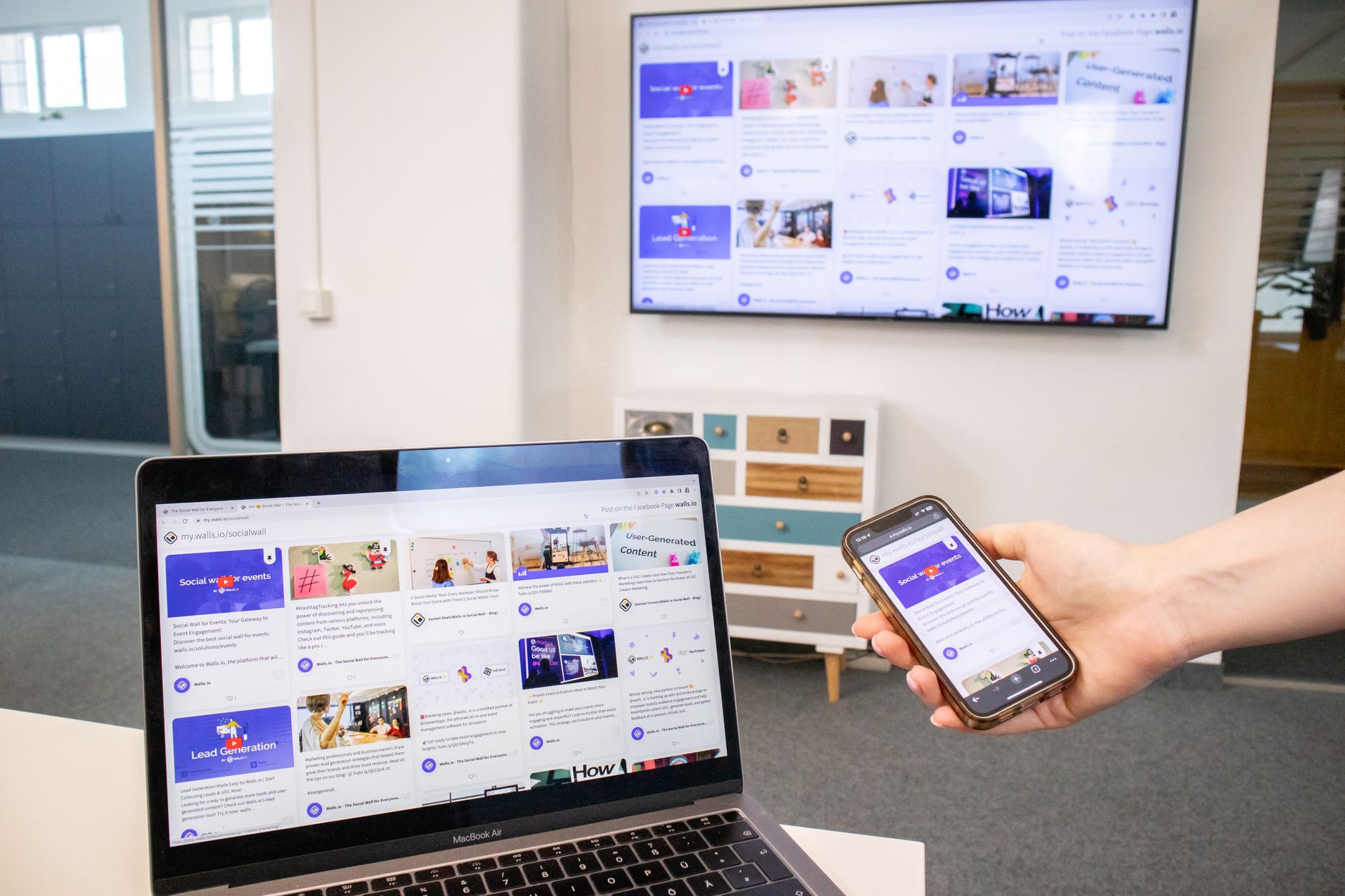
I was at a friend’s house and wanted to show a video from my phone on their TV. They had a smart TV but no Chromecast, no Apple TV, no streaming stick. I thought we were out of luck until I remembered that most modern smart TVs have screen mirroring built in — it is just buried in three different menus and called different things depending on the brand.
Check if your TV already supports mirroring
If your TV was made in the last five or six years and is a “smart” TV, it almost certainly supports one of these protocols:
- Miracast — built into most Android phones and many Windows laptops
- AirPlay — built into iPhones, iPads, and Macs
- Screen Share or Smart View — Samsung’s name for Miracast
On the TV, look in the settings menu for anything called “Screen Mirroring,” “Screen Share,” “Cast,” “Miracast,” or “Wireless Display.” On a Samsung TV, it is in the Source menu. On LG, it is under Network or Connection. On Sony and TCL (Roku TV), it is under Settings > System > Screen Mirroring.
How to connect
iPhone to TV with AirPlay: Swipe down from the top right corner to open Control Center. Tap the Screen Mirroring icon — it looks like two overlapping rectangles. Select your TV from the list. If your TV does not support AirPlay natively, skip to the adapter option below.
Android to TV with Miracast: Swipe down from the top of the screen to open Quick Settings. Look for “Screen Cast,” “Smart View,” “Wireless Display,” or “Mirroring.” The name varies by phone brand but the icon usually looks like a rectangle with a Wi-Fi symbol in the corner. Tap it, select your TV.
If your TV is older
For TVs without any smart features, you can still do this with a cheap adapter. A USB-C to HDMI cable costs about $15 and connects directly from your phone to the TV. No Wi-Fi needed. No setup. Plug it in and your screen appears on the TV. This works with most modern Android phones and iPhones with USB-C (iPhone 15 and later).
For older iPhones with a Lightning port, you need Apple’s Lightning to Digital AV Adapter. It costs more than third-party alternatives but third-party Lightning video adapters are unreliable — I learned this the hard way with one that worked for three weeks and then never again.
📋 Quick Summary: Most smart TVs support Miracast (Android) or AirPlay (iPhone) natively. Look for “Screen Mirroring” in your TV’s settings. For older TVs, a $15 USB-C to HDMI cable works without any setup.