How to Tell If Someone Is Using Your Wi-Fi and Kick Them Off
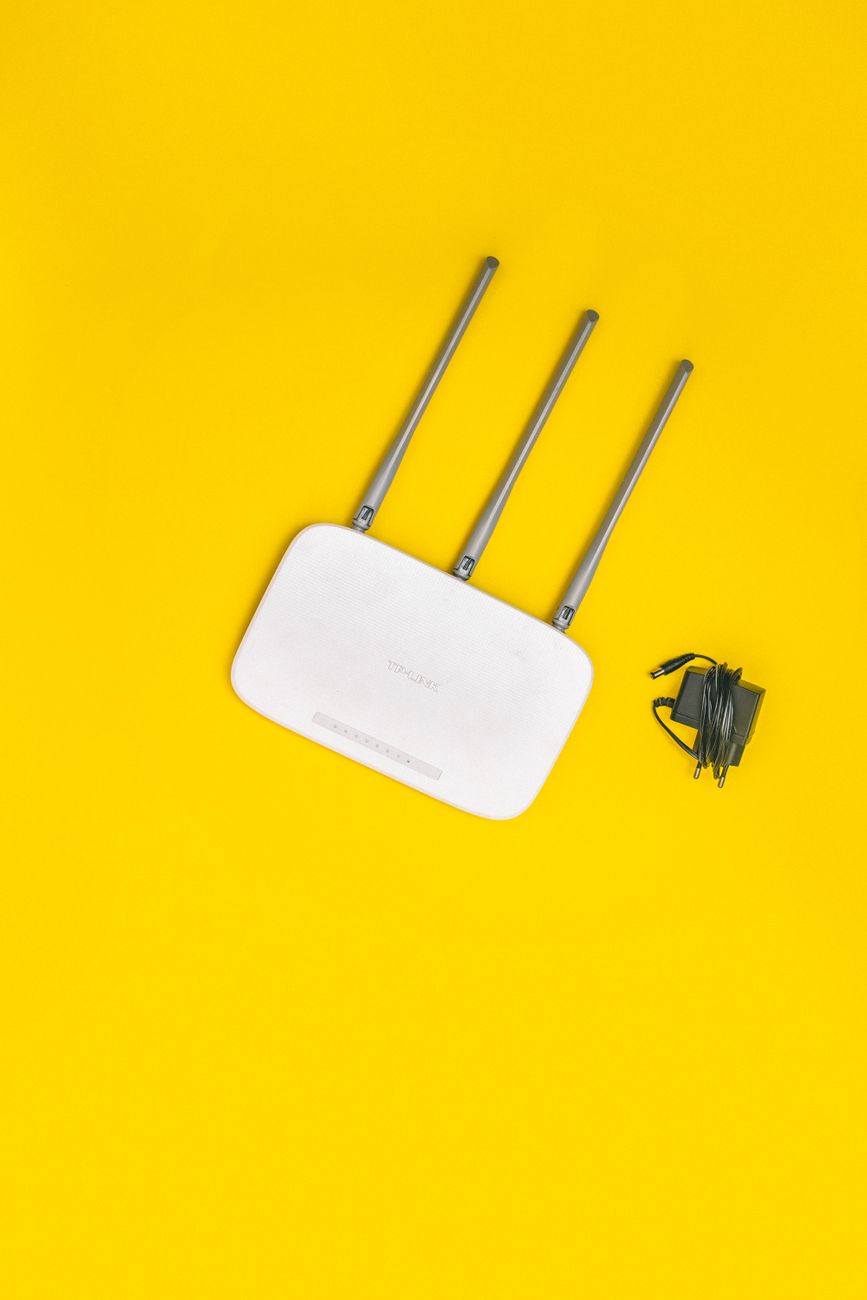
Your internet is slower than it should be. The buffering wheel spins on every video. You pay for fast service, but it feels like dial up. One possibility nobody likes to consider: a neighbor is on your network.
Checking is easier than you think, and kicking someone off takes two minutes.
Log into your router
Every router has an admin page. You reach it by typing the router’s address into a browser, usually a string of numbers. The exact address is printed on the sticker on the bottom of your router, and the login is usually printed there too. You can also find the address in your computer’s network settings, listed as the default gateway.
If you never changed the default password, now is the time. The default credentials are public knowledge, and that is the number one way strangers get in.
Find the connected devices list
In the router admin page, look for a section called Connected Devices, Device List, or Attached Devices. It shows every device currently on your network with its name and IP address. Compare it to the devices you own.
The names are usually readable: your phone shows as your name’s iPhone or a model number. The key is spotting names you do not recognize.
Count your devices first
Before you panic, count the devices you actually own. Phones, laptops, tablets, smart TVs, game consoles, smart speakers, thermostats, printers. A modern home easily has 15 devices. What looks like a stranger might be your own smart plug.
I once panicked about an unknown device that turned out to be my neighbor’s kid, who was visiting and on my guest network. Guest networks have a purpose.
Change the password to kick them off
If you find a device that is definitely not yours, change your Wi-Fi password. That disconnects everyone, including you, so you have to rejoin with the new password. Use a strong one, at least 12 characters, and do not reuse your old password.
Do not leave the network name the same. A new password on the same network name is enough, but changing the name too makes it even harder for a freeloader to reconnect.
Set up a guest network
The clean solution is a separate guest network for visitors. Your main network keeps a strong password, and guests get a separate one. If a guest network gets compromised, your main devices are still safe. Most routers support this in the settings.
Check your security settings
Make sure your Wi-Fi uses WPA2 or WPA3 encryption. If your router is set to WEP or open, anyone nearby can join. This is in the wireless security settings. WPA2 is the minimum these days, WPA3 is better if your router supports it.
Quick Summary: Log into your router, check the connected devices list, and change your password if you see a stranger. Enable WPA2 or WPA3 and use a guest network.
The next time the internet feels slow, I check the device list before I blame the provider. Usually it is just my own TV updating, but once it was not. The password change fixed it instantly.