How to Stop Apps From Tracking Your Location All the Time
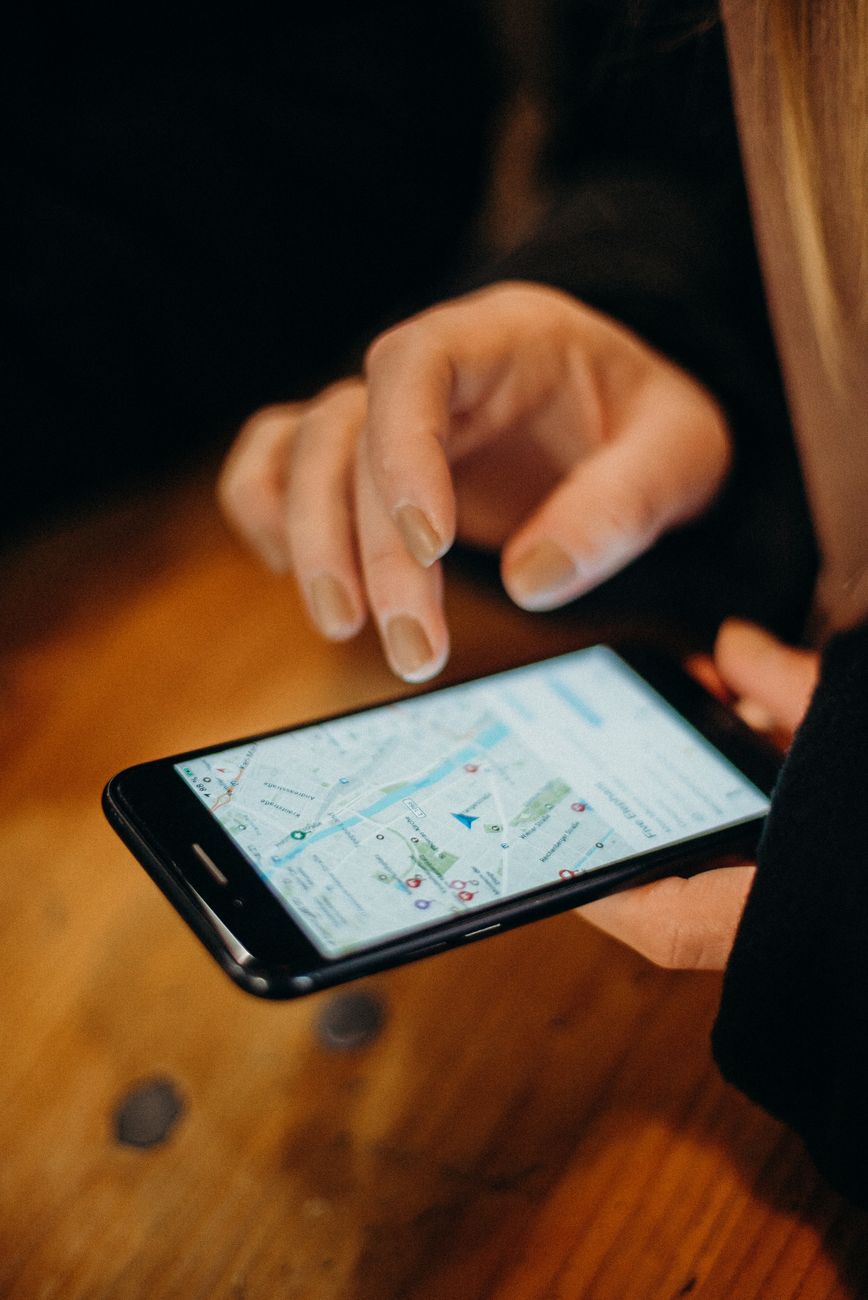
I opened my phone settings one night out of pure curiosity and found out that eleven apps had asked for my location, and I had apparently said yes to all of them. A weather app did not need my exact position. A game did not need to know where I slept. One shopping app had been checking my location in the background for months, and I had no memory of ever opening it.
Apps collect location data because it is valuable, and they do it quietly in the background while you go about your day. The good news is that your phone already has the controls. You just have to use them.
The setting that fixes most of it
Go to your phone settings, find Privacy, then Location Services. You will see every app that has ever asked for your location and what level of access it has.
- “While Using” or “While Using the App” means the app only gets your location when it is open on your screen. This is the right setting for almost everything.
- “Always” means the app can check your location in the background at any time. This is what you want to eliminate.
- “Never” is fine for anything that does not genuinely need to know where you are.
Change every app from “Always” to “While Using” unless you have a strong reason, like a family tracking app or a real navigation need.
Turn off the precise location
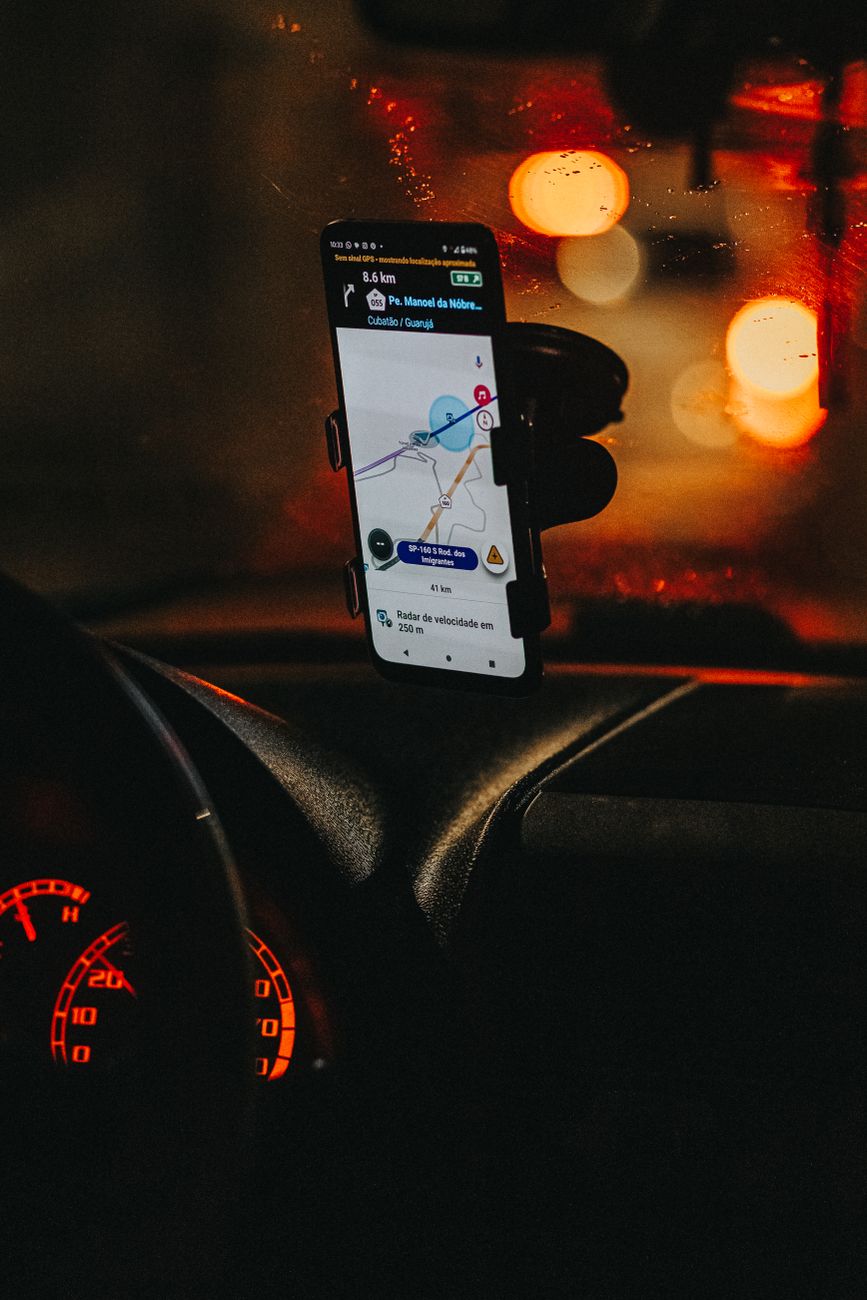
On both major phone systems, you can also switch off precise location for individual apps. The app gets a general area, like a neighborhood, instead of your exact address. Weather apps, news apps, and most games work perfectly fine with approximate location.
Check the system settings too
Two more places quietly collect location: system services and advertising tracking. In the same location settings menu, look for System Services and turn off the ones you do not need, like location based ads and device analytics. Then find the advertising ID setting and reset or disable personalized ads tracking.
I also went through my app list and deleted three apps I had not used in over a year. They were still installed, still asking for permissions, and still reporting back. Deleting them was the fastest privacy fix of all.
The result
My location permission list went from eleven apps with access to four, and those four only work while I am using them. My battery also got noticeably better, because the phone stopped waking up to answer location pings all night. Ten minutes of settings, and the phone stopped narrating my day to strangers.
📋 Quick Summary: Set every app to location access only “While Using,” disable precise location where approximate works, and turn off location based system services and ad tracking.