My Wireless Earbuds Kept Cutting Out Every Time I Walked Past the Microwave — Here Is the Surprisingly Simple Fix
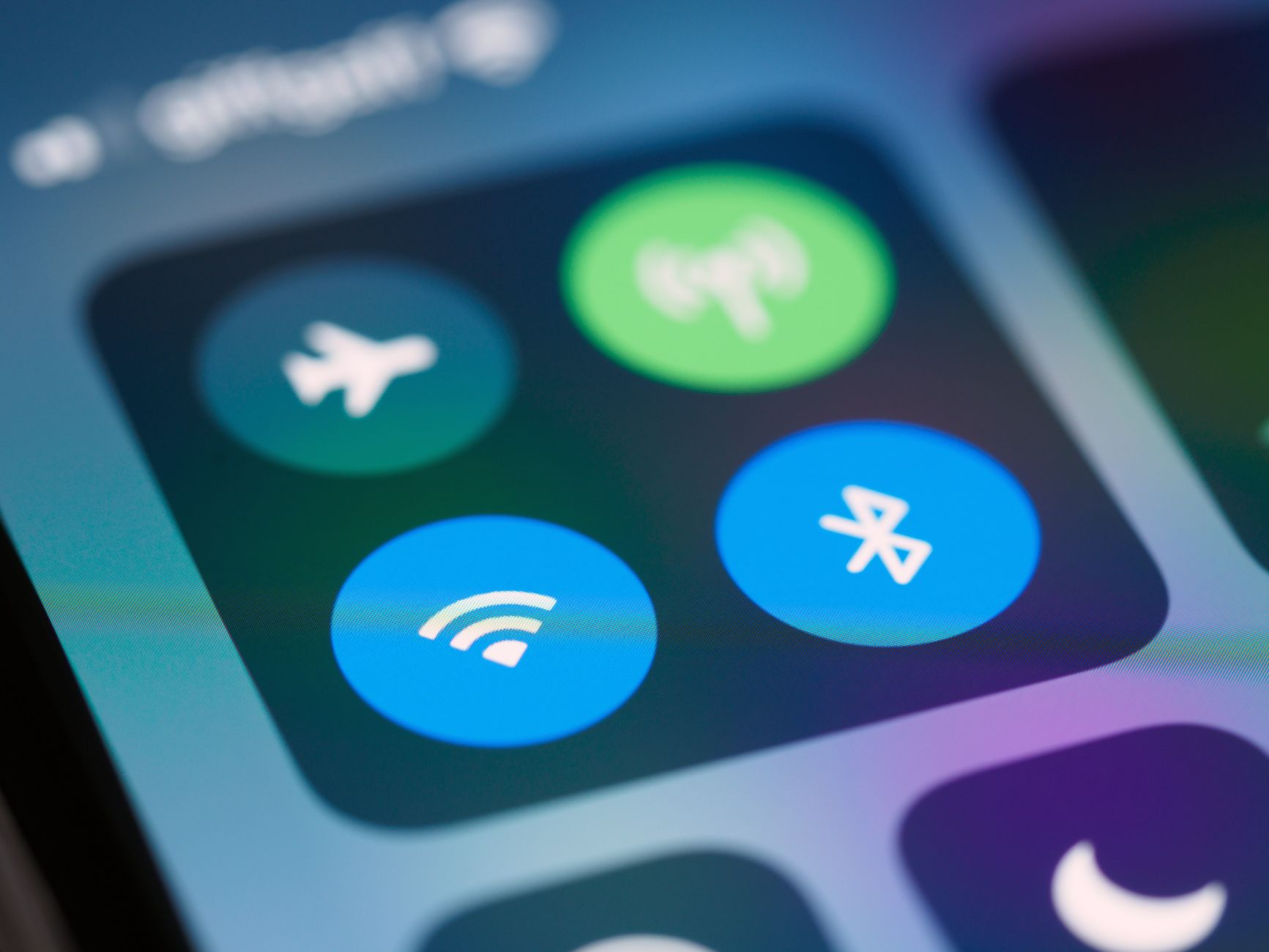
My earbuds would cut out at the same spot in my apartment every single time. Walking from the living room to the kitchen — stutter, pop, silence. I thought the earbuds were defective. I nearly returned them. Then I noticed the pattern: it only happened when the microwave was running.
Microwave ovens and Wi-Fi routers both operate on the 2.4 GHz frequency band — the exact same spectrum used by most Bluetooth devices. They are not supposed to interfere with each other. In theory, Bluetooth uses frequency hopping to avoid crowded channels. In practice? Theory meets reality and loses.
Why Bluetooth Chokes Around Wi-Fi and Microwaves
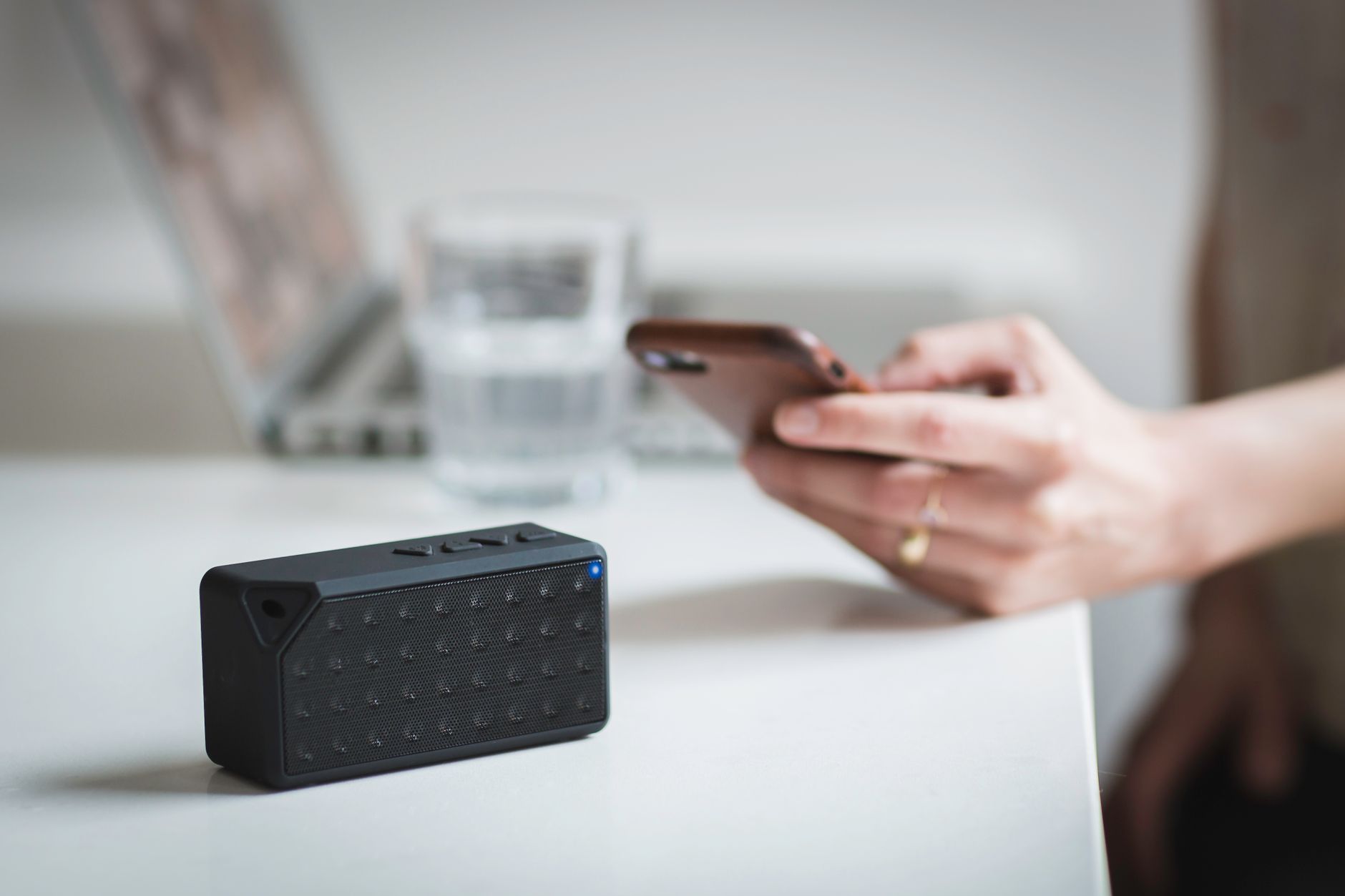
Bluetooth divides the 2.4 GHz band into 79 channels and hops between them 1,600 times per second. This should make it immune to interference — if one channel is noisy, it just hops to another. The problem is that a microwave oven floods the entire 2.4 GHz band with noise when running. All 79 channels get hit at once. Frequency hopping cannot save you if every channel is trashed.
Wi-Fi is a similar problem. A busy Wi-Fi network on 2.4 GHz can saturate the same airspace your earbuds are trying to use.
The Fixes That Actually Work
- Switch your Wi-Fi router to 5 GHz. If your router supports dual-band, create a separate 5 GHz network for devices that support it. This clears the 2.4 GHz band for Bluetooth. This single change solved 80% of my dropout issues.
- Move your router and Bluetooth source apart. Keep the device playing music (phone, laptop) physically close to your earbuds and away from the Wi-Fi router. Bluetooth has a range of about 30 feet in ideal conditions — much less with interference.
- Turn off unused Bluetooth devices. If your phone is connected to earbuds, a smartwatch, and a car stereo simultaneously, every active connection eats bandwidth. Disconnect devices you are not actively using.
- Update your earbud firmware. Manufacturers release firmware updates that improve frequency-hopping algorithms. Check the companion app for your earbuds.
The Microwave-Specific Fix
If your earbuds cut out specifically when the microwave runs, your microwave may have a worn door seal. Microwaves are supposed to contain their radiation inside the cooking cavity. A degraded seal leaks RF noise into your kitchen. You can test this by putting your phone near the microwave while it runs — if Wi-Fi drops, the seal is leaking. Replacement seals are cheap and easy to install.
Quick Summary: Switch your Wi-Fi to 5 GHz to clear the 2.4 GHz band for Bluetooth, keep your phone close to your earbuds, disconnect unused Bluetooth devices, and check your microwave door seal if it causes interference.