The Five Keyboard Shortcuts That Changed How I Use My Computer
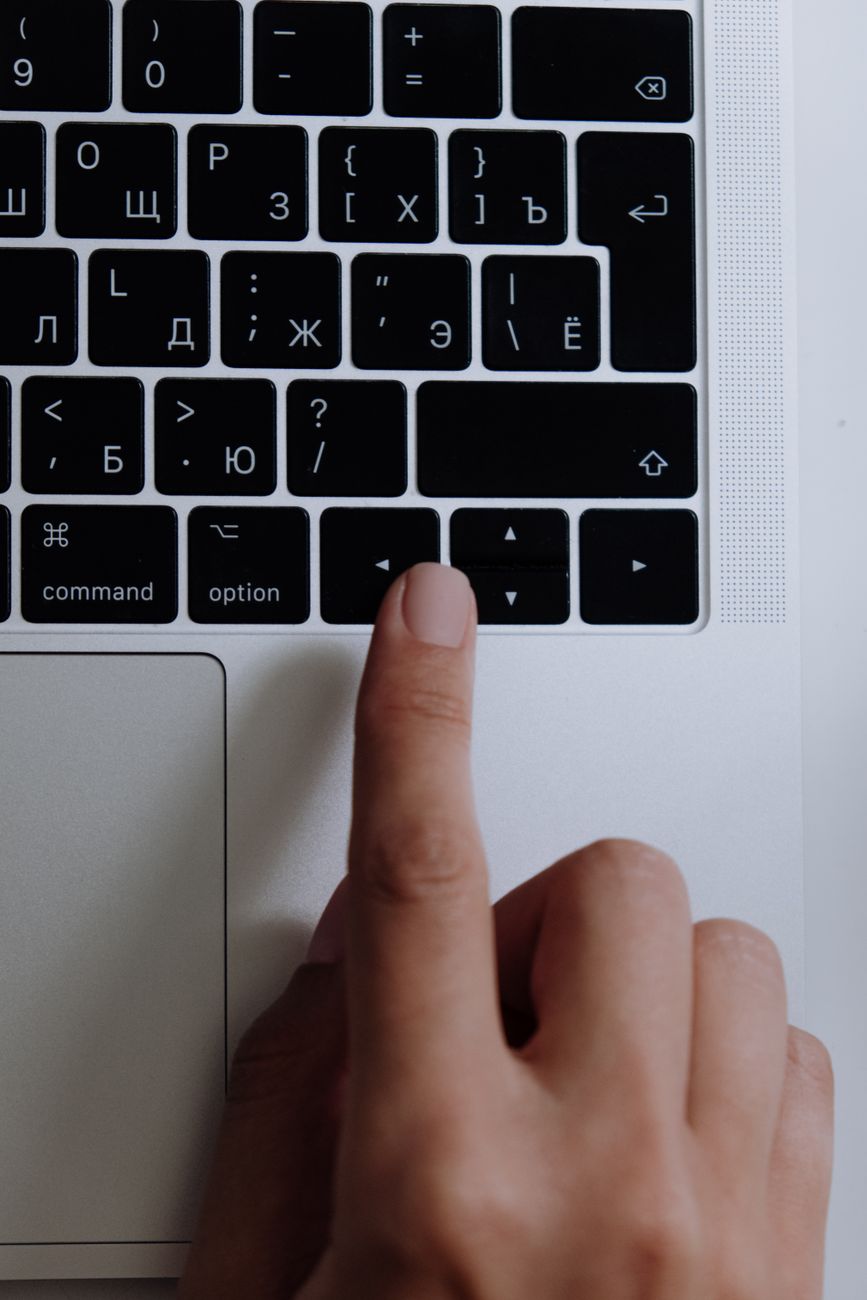
I watched a coworker navigate his computer without ever touching the mouse. He moved between windows, tabs, and applications in half the time it took me to reach for my trackpad. I asked him to show me five shortcuts. He showed me ten. I practiced five of them for a week. My computer time dropped by almost twenty minutes a day.
Twenty minutes a day is a hundred and twenty hours a year. Two and a half work weeks. Retrieved from the time I used to spend dragging a cursor around. Here are the five that mattered most.
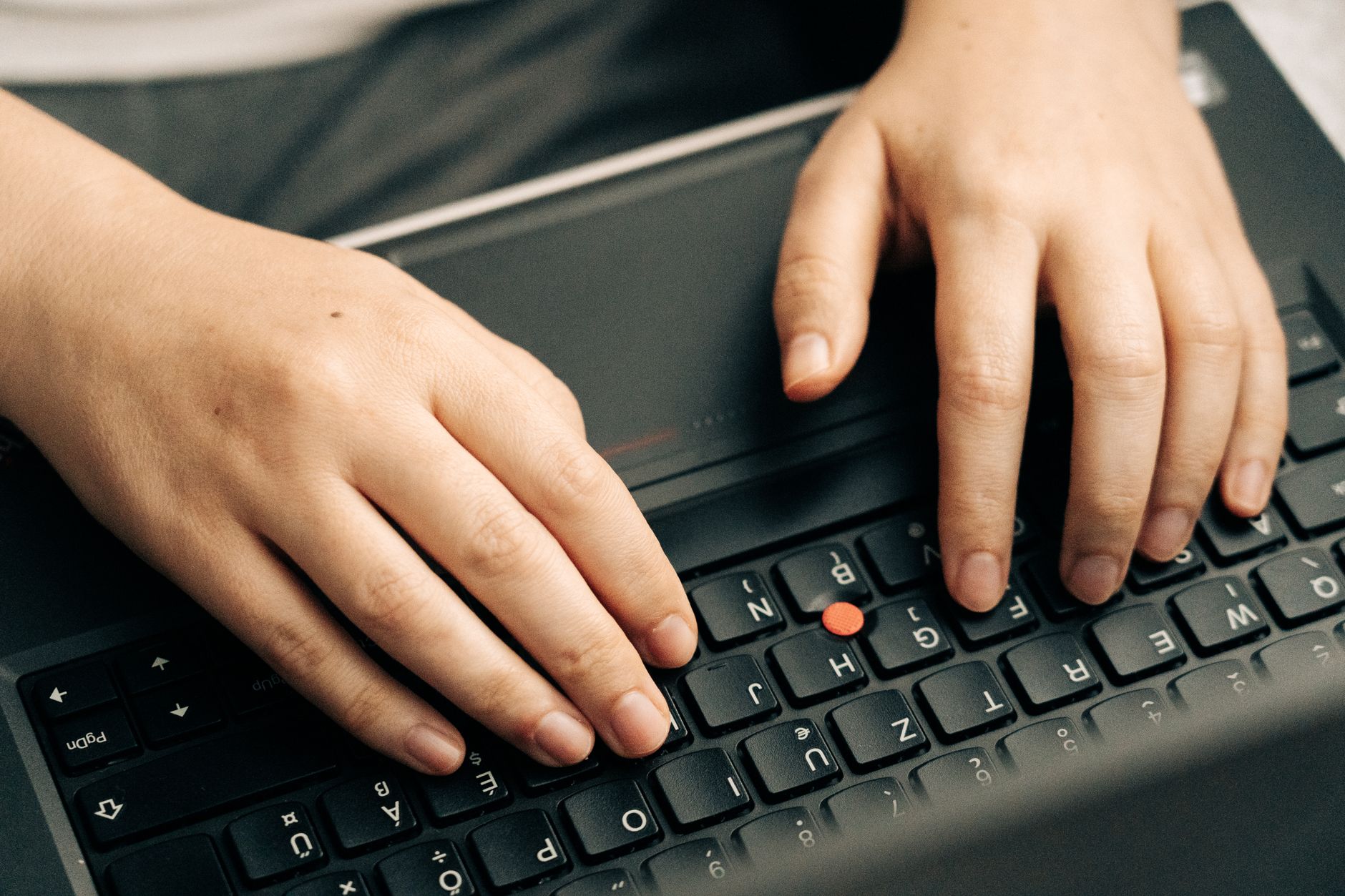
Alt + Tab (Windows) / Cmd + Tab (Mac)
Switch between open applications without touching the mouse. Hold Alt, tap Tab repeatedly to cycle through everything you have open. Release to jump to the highlighted window. This replaced about sixty percent of my mouse movement. I now switch between my browser, email, and notes app in under a second.
Ctrl + T / Ctrl + W (Browser)
New tab. Close tab. That is it. You open and close dozens of tabs a day. Reaching for the tiny X or the tiny plus sign in the tab bar each time adds up. Two keystrokes is faster than aiming a cursor. On Mac it is Cmd instead of Ctrl.
Ctrl + L (Browser)
Jumps your cursor directly to the address bar. You were going to type a URL or a search anyway. Now you do not have to click in the bar first. This one shortcut saves maybe three seconds each time. Do it thirty times a day. That is a minute and a half. Do not dismiss small savings — they compound.
Windows Key + V (Windows Only)
Clipboard history. You copied something five minutes ago but copied something else since then and now the first thing is gone. Windows Key + V opens a list of everything you have copied recently. Click to paste. This replaced my habit of re-copying the same text multiple times. Turn on clipboard history in Settings → System → Clipboard first.
Ctrl + Shift + T (Browser)
Reopen the tab you just closed. You closed the wrong tab. It happens constantly. This brings it back, including the page’s scroll position. No digging through browser history. One keystroke. Instant relief.
I still use a mouse for design work and anything requiring precision. But for the eighty percent of computer work that is switching, searching, and typing, the keyboard is faster. My coworker was right. I just wish I had asked him five years earlier.
Quick Summary: Alt+Tab (switch windows), Ctrl+T/W (new/close tab), Ctrl+L (address bar), Win+V (clipboard history), Ctrl+Shift+T (reopen closed tab). Practice for one week. ~20 minutes saved per day.