The Trick to Getting Better WiFi Signal in Every Room
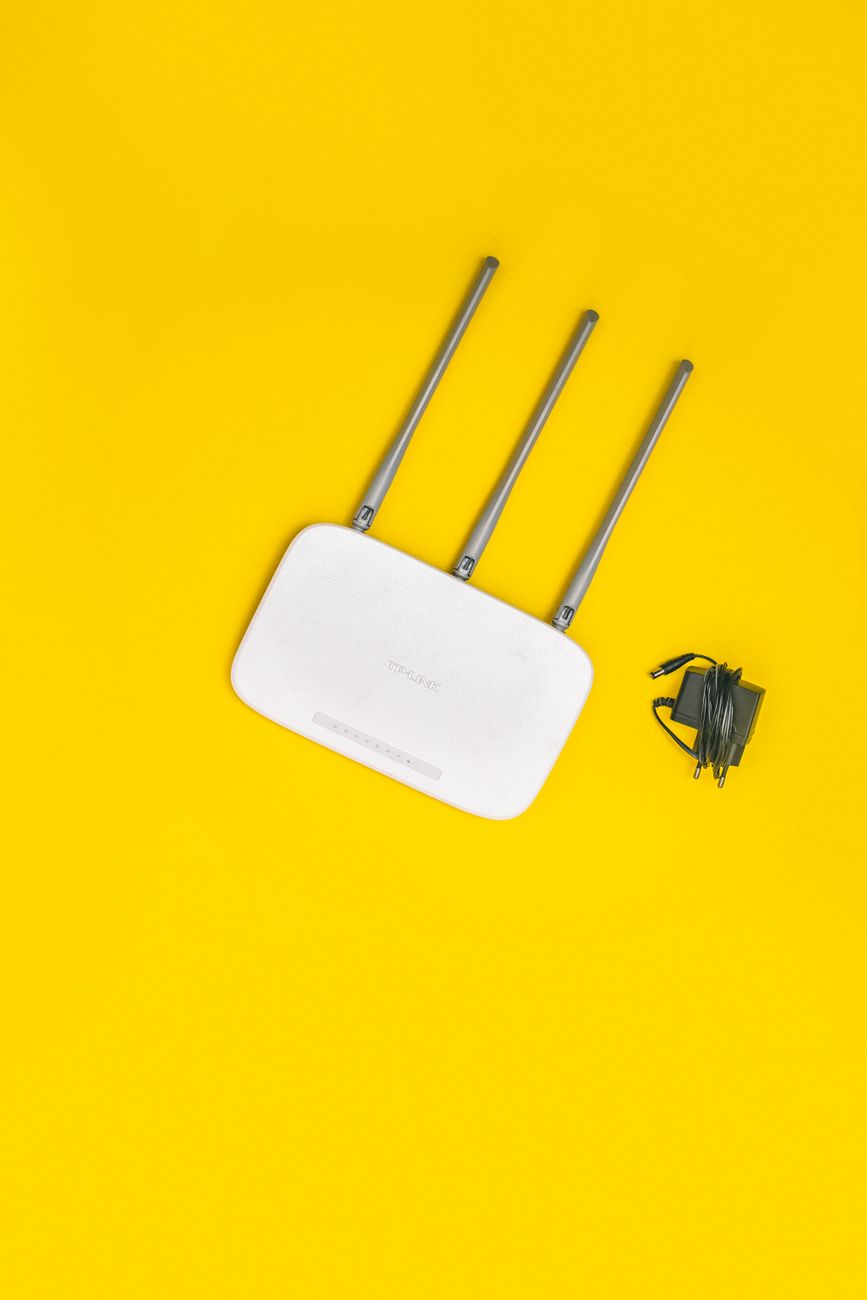
My home office is at the opposite end of the house from the router. For two years I blamed my internet provider for buffering video calls and pages that loaded like it was 1998. I called them. They sent a tech. He ran tests at the router and said everything was fine.
Everything was fine at the router. The problem was that my router was in the worst possible place and I never thought about it.
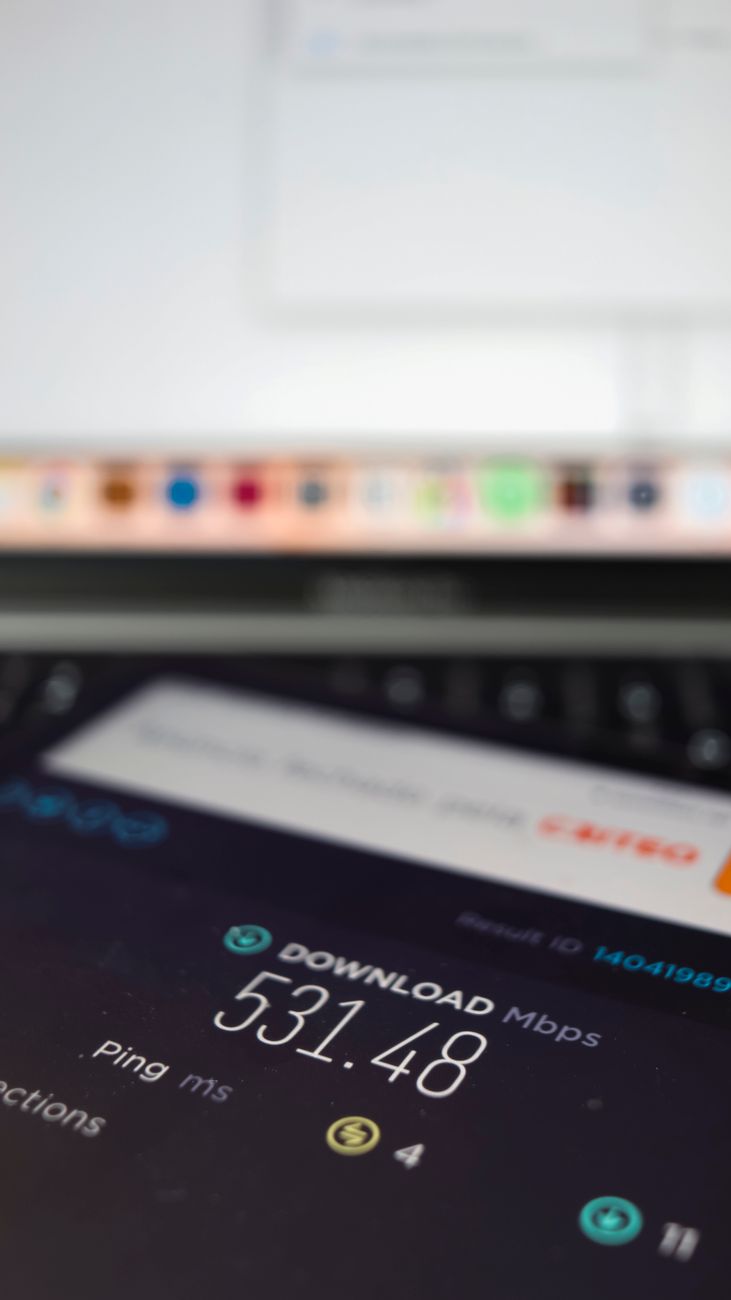
Router Placement Is Everything
WiFi is radio waves. They travel in straight lines and get blocked by walls, floors, appliances, and even people. The ideal router placement is central, elevated, and unobstructed.
Do not put your router:
- In a closet or cabinet. Wood and drywall attenuate the signal.
- Behind your TV. The TV’s metal chassis is basically a shield.
- Near the floor. Signals radiate outward and downward. A router on the floor wastes half its coverage into the crawlspace.
- Next to a microwave or fridge. Metal appliances block and reflect signals. The microwave also blasts 2.4 GHz interference when running.
- Near a fish tank. Water is excellent at absorbing WiFi signals.
Move the router to a high shelf in the most central room of the house. Even a few feet can make a measurable difference. I moved mine from behind the TV in the corner living room to the top of a bookshelf in the hallway—same floor, less than fifteen feet—and my office signal went from two bars to full.
Separate the 2.4 GHz and 5 GHz Bands
Most routers broadcast both bands under one network name and let devices choose. Devices often choose wrong—they cling to the slower 2.4 GHz band because it has a stronger signal, even though 5 GHz is faster.
Log into your router settings and give each band a separate name—like “MyWiFi” and “MyWiFi-5G.” Connect devices that need speed (laptops, streaming boxes) to the 5 GHz band. Connect older or low-bandwidth devices (smart plugs, printers) to 2.4 GHz. 5 GHz is faster but has shorter range, so devices near the router benefit most.
Channel Congestion
If you live in an apartment or dense neighborhood, dozens of nearby routers are all competing for the same WiFi channels. Your router may be set to “Auto” channel selection, which often picks poorly. Use a free app like WiFi Analyzer to see which channels are crowded in your area, then manually set your router to the least congested one.
For 2.4 GHz, stick to channels 1, 6, or 11—those are the only non-overlapping channels. For 5 GHz, most channels are non-overlapping so you have more options.
When You Actually Need a Mesh System
If your house is large (over 2,000 square feet), multiple floors with concrete between them, or has a weird L-shaped layout, no amount of repositioning will cover everything. A mesh WiFi system—two or three small nodes placed around the house—creates a single seamless network. Eero, Google Nest WiFi, and TP-Link Deco are the major brands. Expect to spend about $150 to $300 for a good three-pack.
📋 Quick Summary: Place the router high and central, away from metal appliances and fish tanks. Separate your 2.4 GHz and 5 GHz bands with different names. Check for channel congestion with a WiFi analyzer. If all else fails, a mesh system covers large homes.