The Hidden Setting That Extends Your Phone Battery by Hours
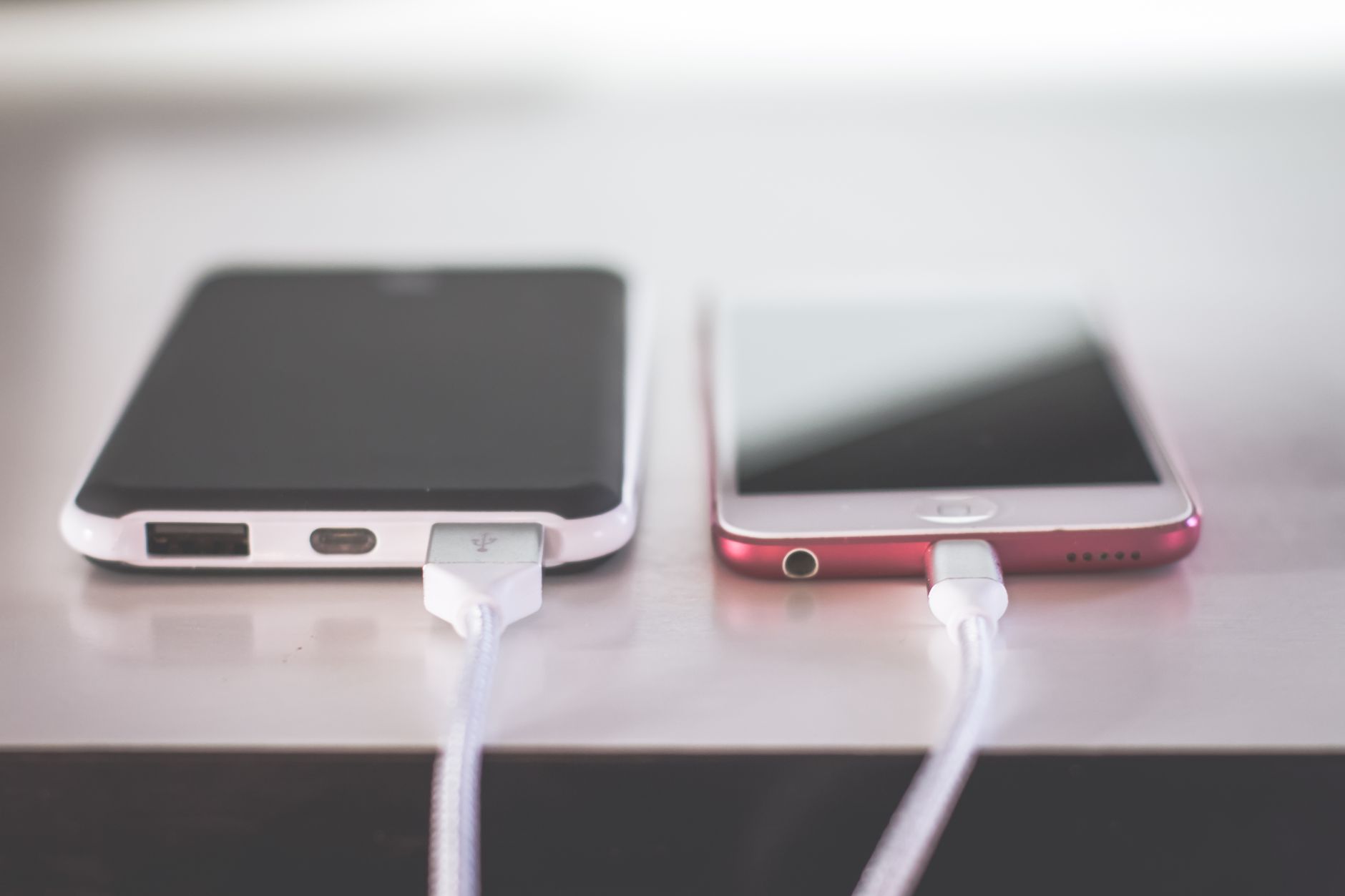
I was on a road trip, phone at 15%, GPS still needed for another hour. No charger in the car — the one time I forgot it. I started frantically Googling “how to make phone battery last longer” while the percentage dropped.
Then I found a setting buried three menus deep that I had never touched. Turning it on bought me almost three extra hours at 10% battery. I made it home with 4% left.
The Setting: Reduce White Point
On iPhone: Settings → Accessibility → Display & Text Size → Reduce White Point. Turn it on and set the slider to about 80%. This dims only the brightest parts of the screen — the whites — without making the whole screen dark.
On Android: Settings → Accessibility → Visibility enhancements → Extra dim. Same idea. You can also add a quick toggle to your notification panel so it is one tap away.
The screen is the single biggest battery drain on any phone. Reducing the intensity of the brightest pixels cuts power consumption significantly without making the screen unreadable.
Other Battery Killers to Disable
5G — switch to LTE in cellular settings. 5G uses way more power and for most things (maps, messages, email) you will not notice the speed difference.
Background app refresh — turn it off completely or limit it to just the apps you actually need updating in the background. Most apps refresh when you open them anyway.
Raise to wake — your phone screen lights up every time you pick it up or bump the table. Turn this off and the screen stays dark until you actually press the button.
📋 Quick Summary: Reduce White Point (iPhone) or Extra dim (Android) cuts screen power draw dramatically — plus turn off 5G and background refresh.