Set Up a Guest WiFi Network — Why You Absolutely Should and How to Do It in 5 Minutes
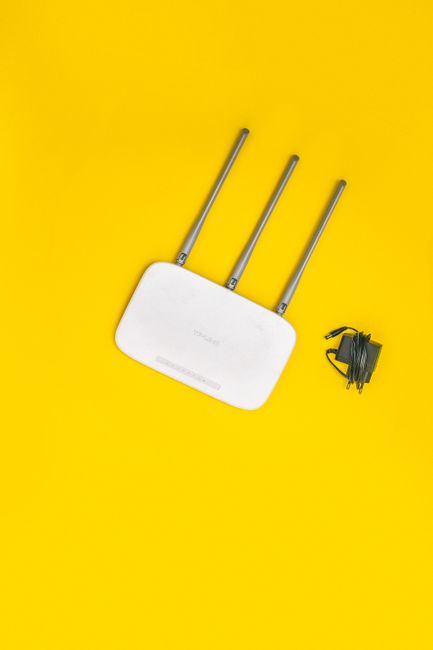
My neighbor asked for my WiFi password once. I gave it to him. Three weeks later, my smart plugs stopped working. I opened my router’s connected devices list and there were 14 unknown devices. His phone, his laptop, his kid’s tablet, and — I am guessing — every friend who had visited his house in the past month had my WiFi password now.
A guest network would have prevented all of this. It took me five minutes to set up and I wish I had done it years ago.
Why a Guest Network Matters — Beyond Password Sharing
A guest network is a completely separate WiFi network that runs alongside your main one. It gets internet access but cannot see anything on your local network — no access to your computers, printers, network storage, smart home devices, or anything else.
This matters even if you never share your password. Here is why:
- IoT devices are security nightmares. Smart bulbs, cheap cameras, random off-brand smart plugs — they rarely get security updates and are easy to hack. If one gets compromised on your main network, the attacker has access to everything. Put them on the guest network and they are quarantined.
- Visitors’ devices might be infected. You do not know what malware your nephew’s laptop picked up. On a guest network, it cannot spread to your devices.
- Smart TVs are data vacuums. Some smart TVs scan your local network and phone home with what they find. A guest network stops this.
How to Set It Up (Most Routers)
- Open a browser and go to your router’s admin page. Usually your router IP (check sticker on bottom) or your router IP (check sticker on bottom). The login is often printed on a sticker on the bottom of the router.
- Find Guest Network or Guest WiFi in the settings. On newer routers it is usually under Wireless Settings.
- Enable it. Give it a name — I use “HouseName-Guest.” Pick a simple password. Guests need to type it, so “redhouseguest24” beats “Xk9#mP2!qR.”
- Make sure “Allow guests to access local network” is UNCHECKED. This is the whole point. If this box is checked, the guest network is just a second door into the same house.
- Save. That is it.
If Your Router Does Not Have Guest Network
Some older or ISP-provided routers do not support guest networks. If yours does not, you have two options:
Buy a new router — even a $50 TP-Link or Netgear has guest network support. Put your ISP router in bridge mode and connect the new router to it. Worth doing if your current router is more than four years old anyway.
Or — if you do not want to replace hardware — most newer devices support WiFi sharing via QR code so guests do not need to type the password. It is not as secure as a guest network, but it is better than handing out your password verbally.
📋 Quick Summary: Guest network isolates visitors and IoT devices from your main network. Set up in 5 minutes via router admin at your router IP (check sticker on bottom). Make sure local network access is unchecked. If your router is too old, upgrade to a $50 model that supports guest networks. Your smart plugs will thank you.