Restart Your Router the Right Way to Fix Weird Internet Problems
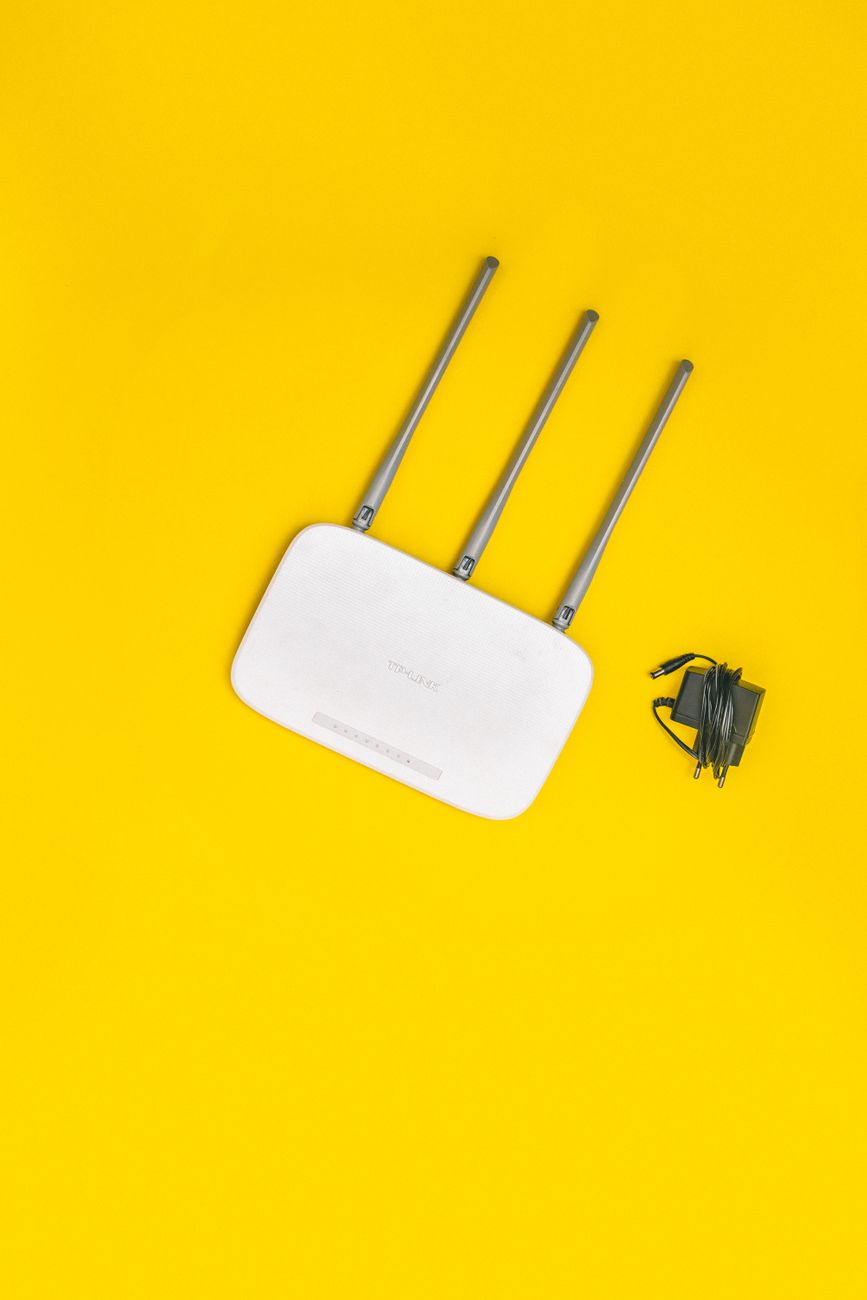
Everyone knows the first thing tech support tells you is “unplug your router and plug it back in.” But most people do it wrong. They unplug it, count to three, plug it back in, and wonder why the internet is still slow. There is a right way and a wrong way to restart a router, and the difference matters.
Why Three Seconds Is Not Enough
When you unplug a router, the internal capacitors hold a charge for about 10 to 30 seconds. If you plug it back in after three seconds, the circuits never fully discharged. The router’s RAM — where temporary data, routing tables, and small corruptions live — does not get cleared. You are basically putting it to sleep for a moment, not restarting it.
A proper restart requires at least 30 seconds unplugged. Some network engineers recommend 60 seconds to be safe. During this time, the capacitors drain completely, the RAM clears, and any stuck processes in the router’s firmware terminate.
The Correct Restart Sequence
- Unplug both the modem and the router. If you have a combo unit (modem and router in one device), unplug that. If they are separate, unplug both. The modem needs to re-establish its connection with your ISP, and the router needs to clear its cache and reassign IP addresses.
- Wait a full 60 seconds. Set a timer on your phone. Do not guess. The extra 30 seconds costs you nothing and ensures a full reset.
- Plug in the modem first. Wait for all the lights to stabilize — usually about 2 minutes. The modem needs to authenticate with your ISP, obtain a WAN IP address, and establish a stable connection before the router tries to talk to it.
- Plug in the router second. Wait another 2 minutes for it to boot, negotiate with the modem, and start broadcasting WiFi.
The whole process takes about 5 minutes. It solves more internet issues than you would expect — slow speeds, devices that connect but have no internet, WiFi networks disappearing, random disconnects.
If the Problem Keeps Coming Back
If you have to restart your router more than once a week, the restart is not the problem — it is just the symptom. A few things to check:
- Router placement: Is it on the floor? Tucked behind a TV? Inside a cabinet? All of these choke WiFi signal. A router should be elevated, centrally located, and out in the open. A shelf or the top of a bookcase is ideal.
- Router age: If your router is more than 5 years old, it is probably running outdated WiFi standards and its internal components are wearing out. Routers are not built to last a decade. A new one costs 50 to 80 dollars and makes a bigger difference than any amount of restarting.
- Overheating: Routers generate heat and need ventilation. If the router is hot to the touch, it is throttling its performance to avoid damage. Make sure it has a few inches of clearance on all sides and is not stacked on top of other warm electronics.
- Firmware updates: Log into the router’s admin page (the address is usually printed on a sticker on the bottom) and check for firmware updates. Router manufacturers rarely push these automatically. A firmware update from 2022 might be sitting there waiting to fix exactly the problem you are having.
📋 Quick Summary: Unplug modem AND router, wait 60 full seconds, plug in modem first, wait for lights, plug in router. The 30-second wait (not 3 seconds) drains capacitors and clears RAM. If problems persist weekly, check router placement, age, overheating, and firmware updates.
I used to restart my router wrong for years. Now I do the full 60-second sequence whenever things get weird, and it almost always sorts itself out. The internet is still a mystery to me, but at least I know how to turn it off and on again properly.