How to Transfer Photos From an Old Phone Without Any Cloud Service
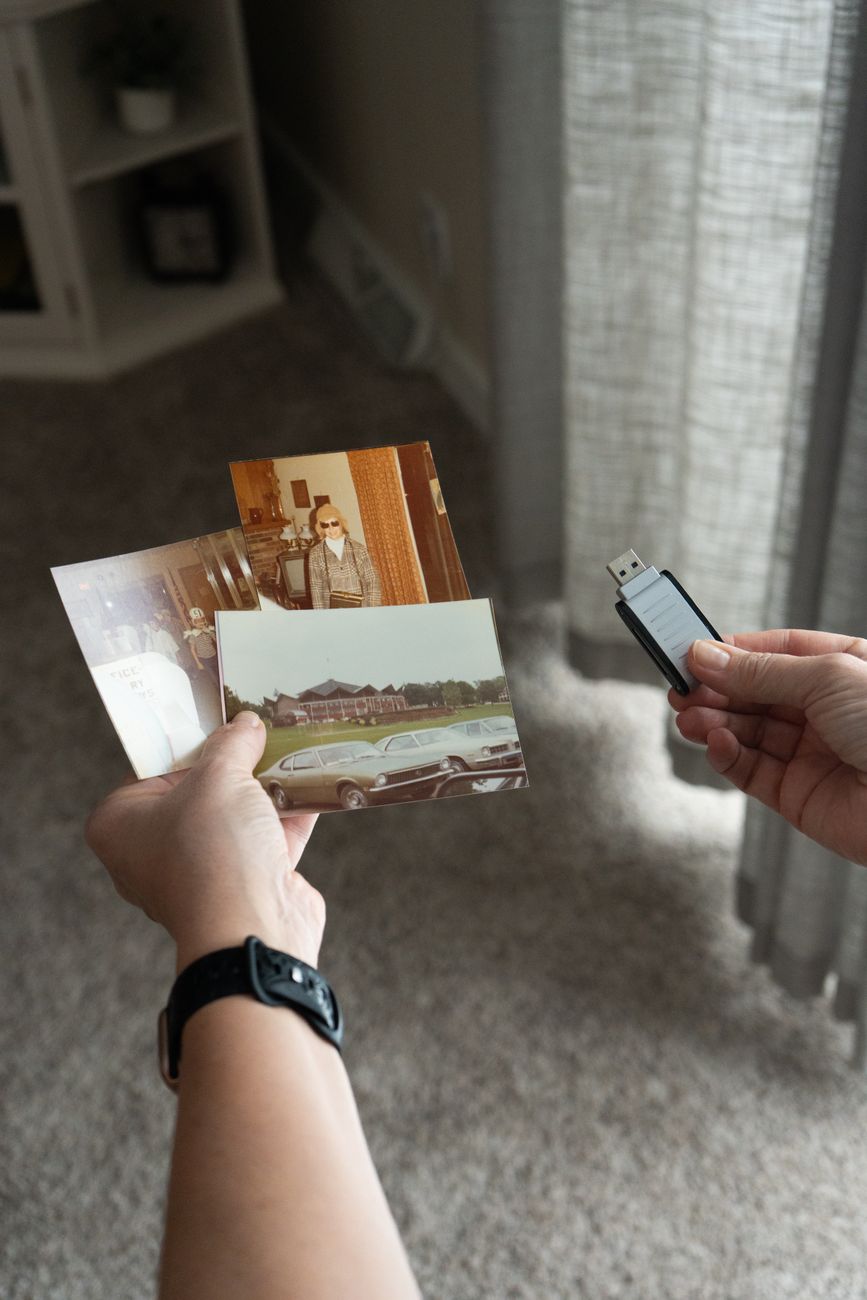
I upgraded my phone and had four thousand photos on the old one. I did not want to pay for cloud storage. I did not want to upload my entire camera roll to some server I do not control. I just wanted the photos on my new phone and on my computer, locally, with no middleman.
Here are the methods that work without a cloud account, ranked from easiest to most technical.
Method one: Direct cable transfer (iPhone to iPhone, Android to Android)
When setting up a new phone, both iPhone and Android now offer direct device-to-device transfer. During initial setup on the new phone, you will see an option to transfer data from your old phone. Put the old phone next to the new one and follow the prompts. This copies photos, contacts, messages, and settings over a direct Wi-Fi connection or a cable. No cloud involved. This only works during initial setup — if you have already set up your new phone, skip to the next method.
Method two: USB cable to computer (universal)
- Connect your old phone to a computer with a USB cable.
- On Android: unlock the phone and change the USB mode from “Charging” to “File Transfer” or “MTP.” The phone appears as a drive on your computer.
- On iPhone: unlock the phone and tap “Trust This Computer.” Use Windows File Explorer or Mac’s Image Capture app to import photos.
- Navigate to the DCIM folder (Android) or use Image Capture (iPhone). Copy all photo folders to your computer.
- Connect the new phone and copy the photos back — or just keep them on the computer as a local backup.
This is completely offline, completely free, and works for any phone made in the last decade. The only limitation is cable speed — USB 2.0 on some phones is slow for thousands of photos. Let it run overnight.
Method three: SD card bridge (Android only)
If both phones have microSD card slots: copy photos from the old phone’s internal storage to the SD card, eject it, insert into the new phone, copy from SD card to internal storage. This is the fastest method if your phones support it. Many newer phones have dropped the SD card slot but budget and midrange Android phones still have them.
Method four: Local Wi-Fi transfer app
Apps like Send Anywhere or LocalSend transfer files directly between devices over your local Wi-Fi network. No account required, no files uploaded to any server. Both phones need to be on the same Wi-Fi network and both need the app installed. This is good for selective transfers — you can pick specific albums or date ranges instead of copying everything.
What I do now
I plug my phone into my computer once a month and copy everything in the DCIM folder to an external hard drive. That drive is my primary photo backup. I also keep the most recent year of photos on my phone. Old photos get archived to the drive and removed from the phone to free up space. No cloud subscription, no monthly fee, no company having access to my family photos. It takes ten minutes a month.
📋 Quick Summary: Use a USB cable to copy photos directly from your old phone to a computer. For Android, set USB mode to File Transfer. For iPhone, use Image Capture on Mac or File Explorer on Windows. Keep the photos on an external hard drive as a free local backup.