How to Stop Your Laptop From Overheating When You Use It in Bed

My laptop shut down in the middle of a Netflix episode. Black screen, no warning. I touched the bottom and it was hot enough to fry an egg. I had been using it on a comforter for two hours, completely blocking the air intake vents on the bottom. The laptop did exactly what it was supposed to do — thermal shutdown to prevent permanent damage. I was the problem, not the computer.
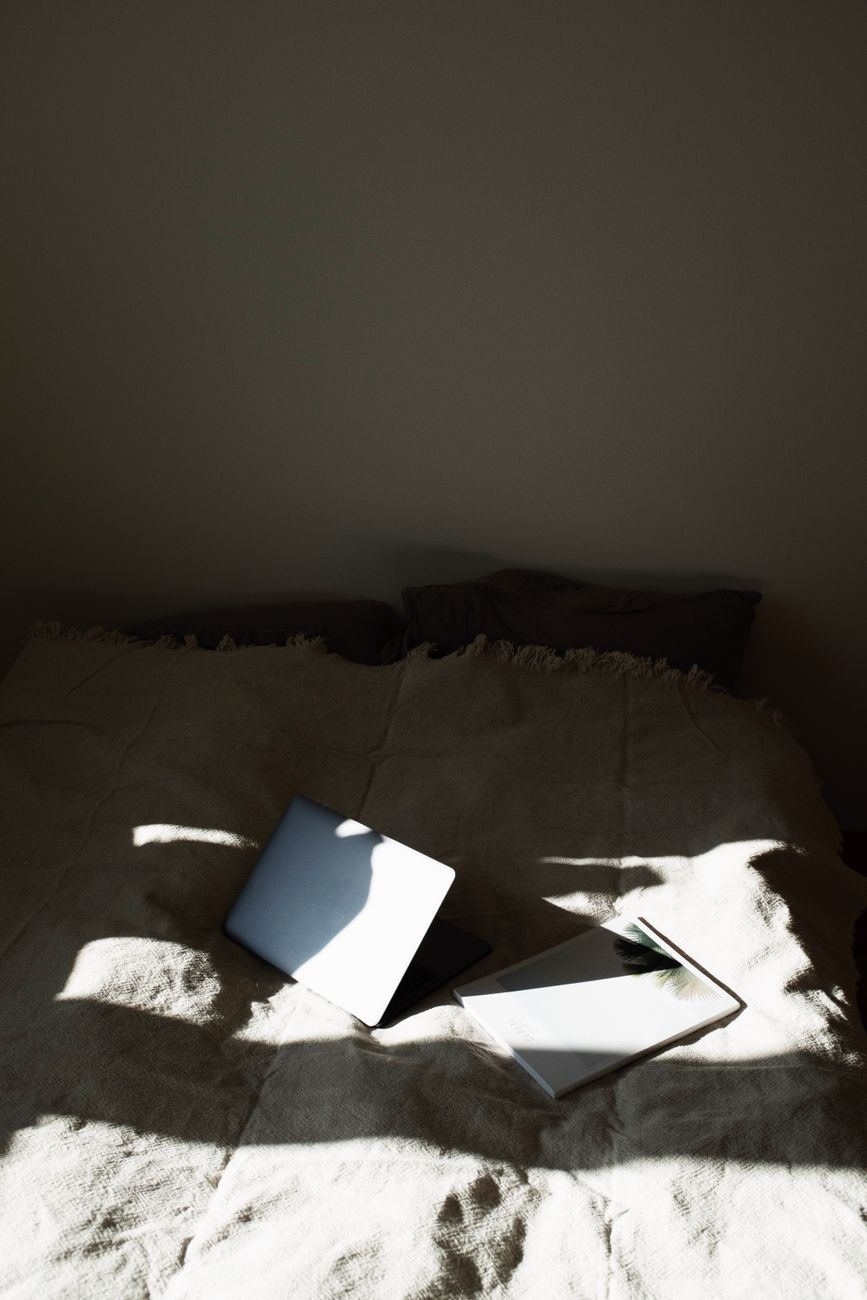
Laptops and soft surfaces do not mix. Blankets, pillows, your lap, the couch cushion — all of them block airflow. Laptops pull cool air from the bottom and vent hot air out the side or back. Block the intake and the internal temperature climbs fast.
The quickest fix: a hard surface
Put a book, a cutting board, or a lap desk under the laptop. Anything flat and rigid. The air gap between the bottom of the laptop and the hard surface is how cooling works. A hardcover book is free and effective. A wooden cutting board from the kitchen works perfectly. I used a large hardcover cookbook for months before buying an actual lap desk.
The slightly better fix: a cooling pad
A laptop cooling pad is a flat platform with built-in fans that plugs into a USB port. It lifts the laptop off the surface and actively blows air across the bottom. Prices range from fifteen to forty dollars. The cheap ones work nearly as well as the expensive ones — the main difference is noise level. A fifteen-dollar cooling pad lowered my laptop temperature by about twelve degrees Fahrenheit under load.
If you go this route, buy one with mesh surface instead of solid plastic with a few holes. Mesh allows airflow across the entire bottom of the laptop, not just where the holes are.
Software fixes that cost nothing
- Close browser tabs. Each open tab uses RAM and CPU. If you have forty tabs open, your laptop is working harder than you realize. Closing twenty of them dropped my CPU temperature by five degrees immediately.
- Check for dust. Over time, dust clogs the internal fan and heatsink. If your laptop is more than a year old and the fan runs constantly even at idle, it probably needs cleaning. A can of compressed air blown into the vents — with the laptop off — can dislodge a surprising amount of dust.
- Adjust power settings. On Windows, set power mode to “Balanced” or “Power Saver” instead of “High Performance.” On Mac, the default settings are fine but avoid running CPU-intensive apps while on battery.
- Update your drivers and OS. Sometimes overheating is a software bug where the CPU never idles. A system update can fix this overnight.
📋 Quick Summary: Always put a hard surface under your laptop on soft surfaces. A book or cutting board works. A cooling pad drops the temperature further. Close extra browser tabs and clean dust from vents periodically.