Free Up Phone Storage Without Deleting Your Photos
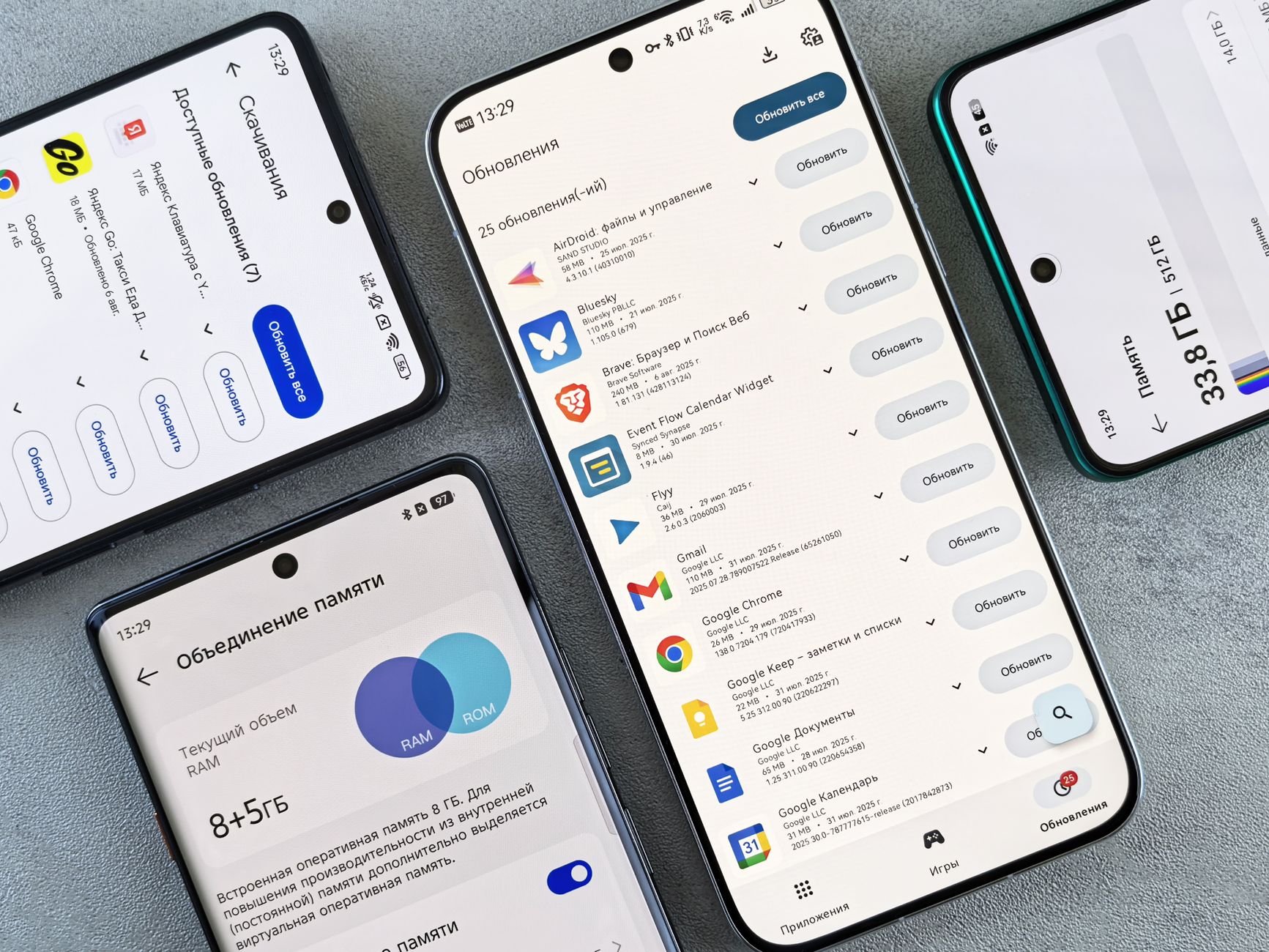
“Storage Almost Full.” The most annoying notification on any phone. I would delete five photos, free up forty megabytes, and the notification would come back three days later. It felt like bailing out a boat with a teaspoon.
Photos are never the real problem. The real storage hogs are apps, messages, and downloaded media you forgot about. Here is how to reclaim gigabytes without touching your camera roll.
Offload unused apps (iPhone) or clear app data (Android)
On iPhone: Settings → General → iPhone Storage. You will see a list of apps sorted by size. Tap “Offload App” on anything you have not used in a month. This removes the app but saves your documents and data. When you reinstall it, everything comes back. Games are the worst offenders — some are three to five gigabytes.
On Android: Settings → Apps → tap an app → Storage → Clear Data. This is more nuclear — it removes everything including login info. Use “Clear Cache” instead if you just want to reclaim temporary files without losing your settings.
Delete old message attachments
Text messages with photos and videos accumulate silently. Go into any active group chat and scroll back six months — you will find dozens of memes, videos, and photos you sent or received and forgot about. iPhone: Settings → General → iPhone Storage → Review Large Attachments. You can delete attachments without deleting the conversation.
On Android, use Google’s Files app → Clean tab. It surfaces old memes, duplicate files, and downloaded documents you no longer need. I freed up seven gigabytes the first time I ran it. Seven. On a sixty-four-gig phone, that is over ten percent of total storage.
Stream instead of download
Spotify’s downloaded playlists, Netflix’s offline downloads, podcast episodes you already listened to — these pile up fast. Check each media app’s downloaded content and delete what you have already consumed. Netflix downloads auto-delete after forty-eight hours in settings, which is a feature you should enable. Spotify: Settings → Storage → Delete Cache clears temporary streaming files without touching your downloaded music.
📋 Quick Summary: Offload unused apps, delete old message attachments and group chat media, clear downloaded content from Spotify and Netflix. I freed up over fourteen gigabytes without deleting a single photo.