How to Turn Your Old Phone Into a TV Remote in Minutes
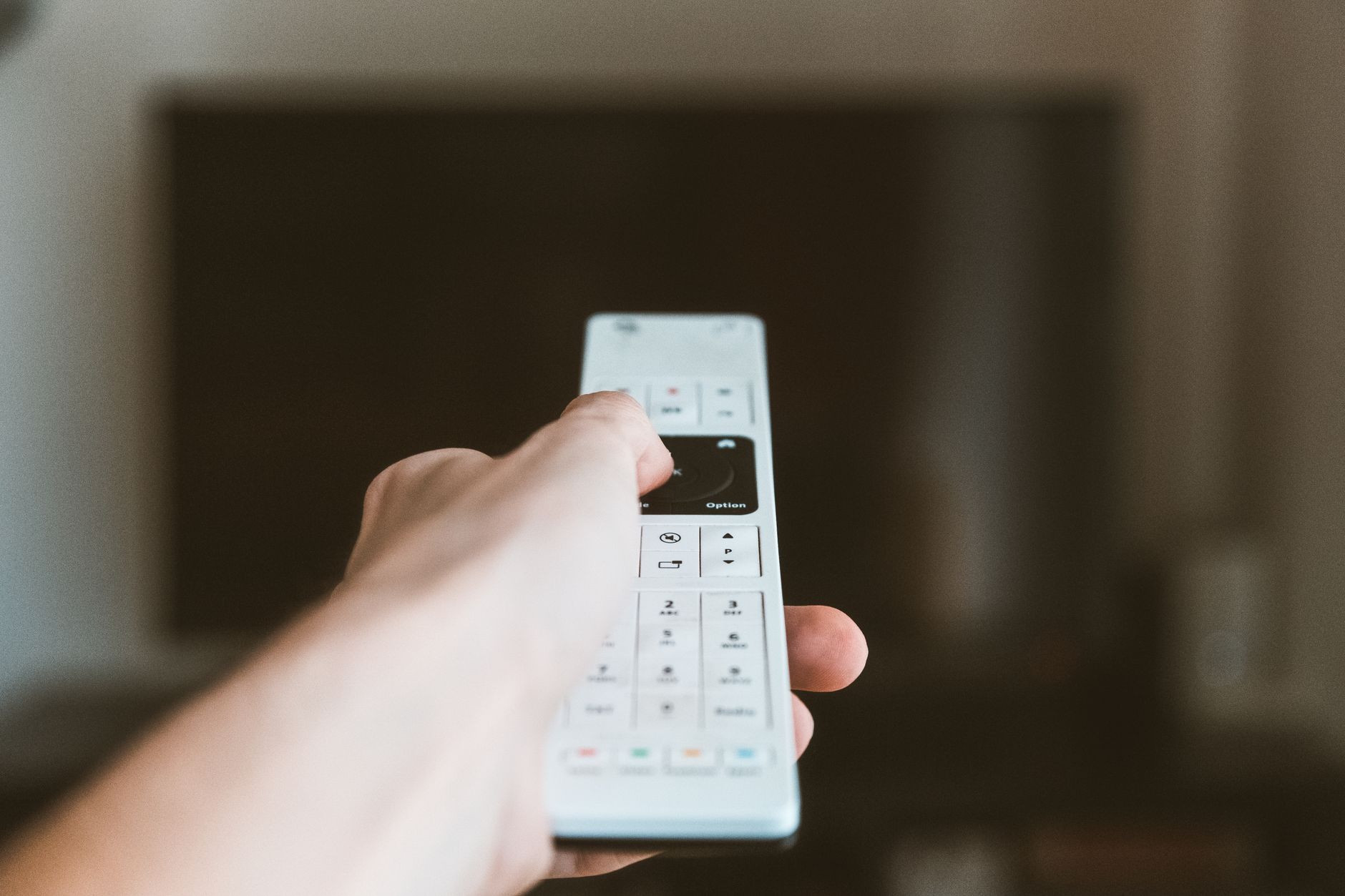
I have lost, sat on, and buried my TV remote so many times that I gave up looking for it and started using my old phone. It is sitting in the couch cushion graveyard next to the one I lost anyway, and it works better than the original. You probably have the same phone in a drawer right now.
What You Need
- An old smartphone, Android or iPhone.
- WiFi, so the phone and the TV are on the same network.
- A remote app. The universal ones work with almost every smart TV.
The Setup
- Charge the old phone and connect it to your home WiFi.
- Install a universal remote app. Pick one with a good rating and no ads that cover the buttons.
- Open the app and let it scan your network for the TV. It finds most smart TVs automatically.
- Pair the phone to the TV. Some TVs show a code, some just connect.
- Test the buttons, then pin the app on the home screen so it opens in one tap.
That is it. Five minutes and you have a remote that never gets lost, because the phone is too big to disappear between the cushions.
When a Remote App Will Not Work
- Old TVs without WiFi. If your TV is not a smart TV, the app has nothing to talk to.
- TVs with no remote app support. Check the app’s supported list before you install.
- If your old phone has an IR blaster, usually an Android thing, you can control almost any TV with IR. That phone is a universal remote for everything.
Bonus Uses for the Old Phone
- Cast videos to the TV from the phone’s browser.
- Use it as a dedicated remote for your streaming stick.
- Keep it plugged in on the coffee table as a TV control station.
My old phone has been my TV remote for six months. I do not even know where the original remote is anymore. It is probably still in the couch. The phone works, never needs new batteries, and cost me nothing.
📋 Quick Summary: Connect your old phone to WiFi, install a universal remote app, pair it with the TV, and pin the app. Five minutes, free remote.