The Trick to Reading Your Phone in Bed Without Wrecking Your Sleep
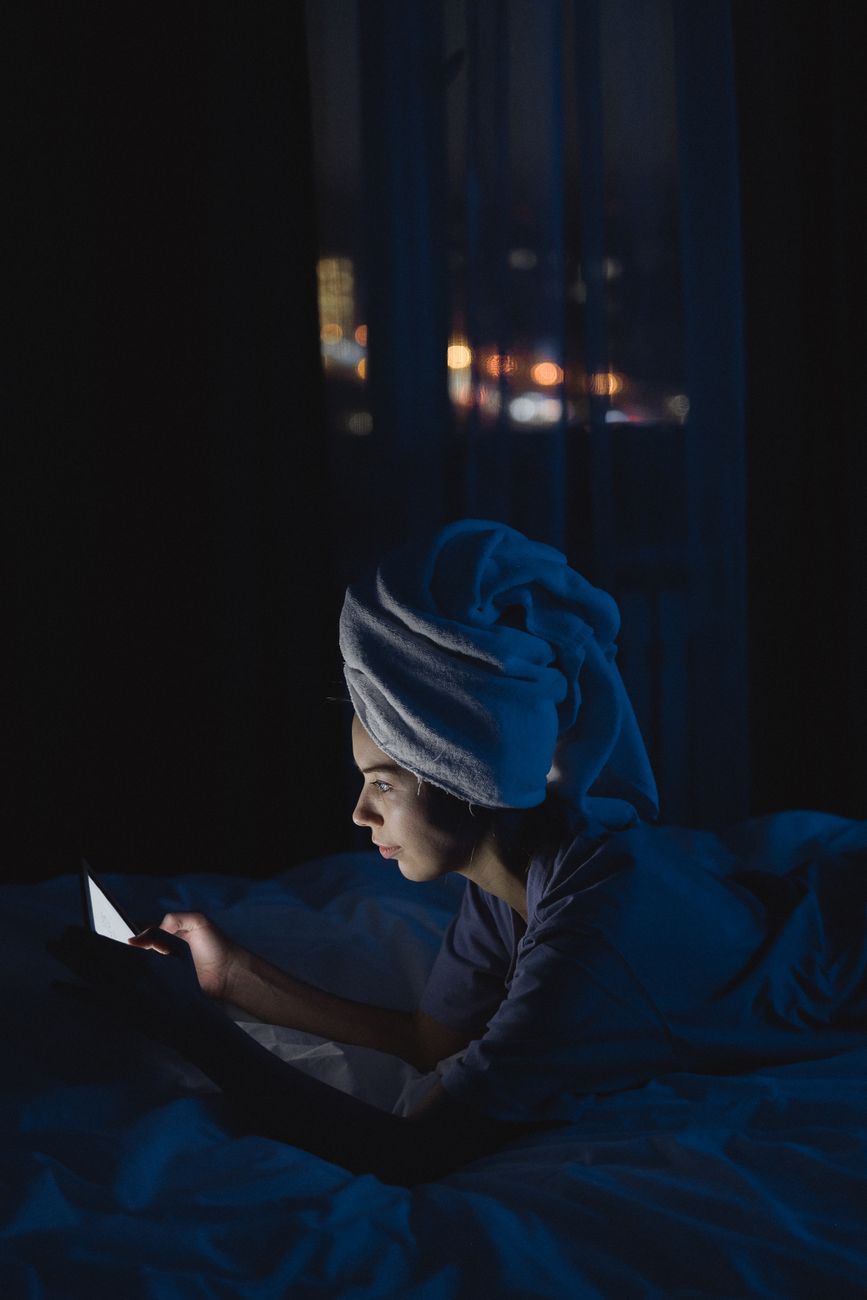
The 1 AM Scrolling Problem
You know the drill. You lie down, tell yourself five minutes of scrolling, and suddenly it is 1 AM and your brain will not shut off. I did this for years and blamed everything except the obvious: the phone itself was the problem.
The fix is not throwing the phone across the room. It is making the screen work with your sleep instead of against it.
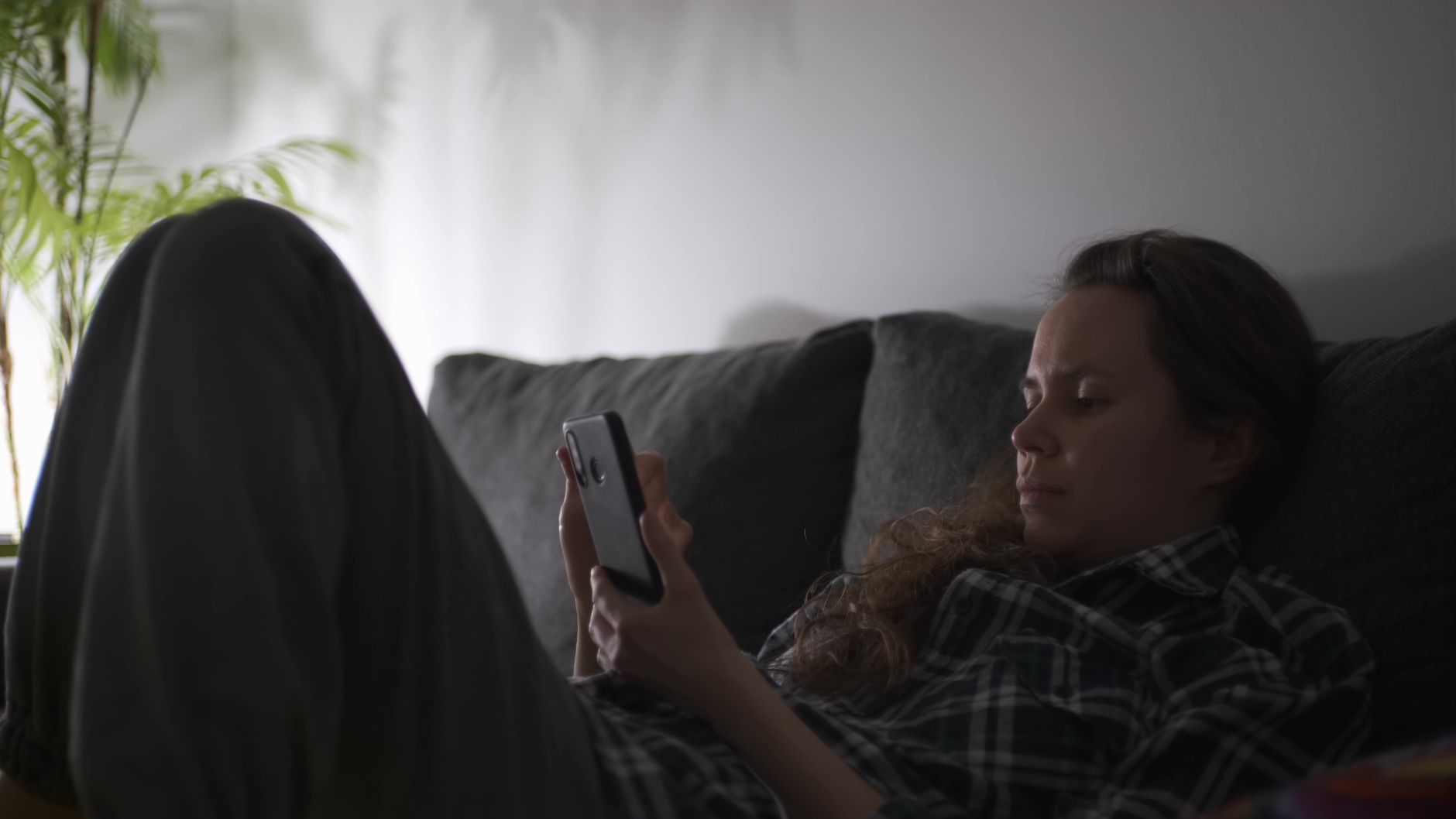
Turn On Night Mode Before Bed, Not At Bed
Blue light suppresses melatonin, the hormone that makes you sleepy. Night mode shifts the screen to warm colors, and it works best when it turns on automatically. Set it to start an hour or two before your bedtime, not when you get under the covers.
Both major phone systems have a schedule feature for this. Set it once and forget it.
Drop the Brightness Below Default
Night mode changes the color, but brightness is the bigger problem. A glowing screen in a dark room tells your brain it is daytime. Manually drag the brightness down as low as you can stand it, and enable the extra dim mode if your phone has one.
Use Dark Mode in Your Apps
Dark mode apps put black pixels behind white text, which cuts the total light hitting your eyes dramatically. Almost every reading app has it. If you read articles in bed, switch the reader to dark mode or sepia and the screen turns from a floodlight into a book page.
The One Setting That Changed Everything
The real game changer for me was grayscale mode. Set your phone to display in black and white after a certain hour. It sounds drastic, but colorful apps lose their pull when they are gray, and you will find yourself putting the phone down in minutes instead of hours.
- Schedule night mode an hour before bed
- Manually lower brightness
- Use dark mode in reading apps
- Try grayscale after your bedtime
I still read in bed, but I fall asleep twenty minutes after the phone goes down instead of two hours. The screen is warm, dim, gray, and boring, and boring is exactly what bedtime needs.
📋 Quick Summary: Schedule night mode early, lower brightness manually, use dark mode in reading apps, and try grayscale after bedtime. A boring screen is a sleepy screen.