How to Recover Deleted Photos Even After Emptying the Trash
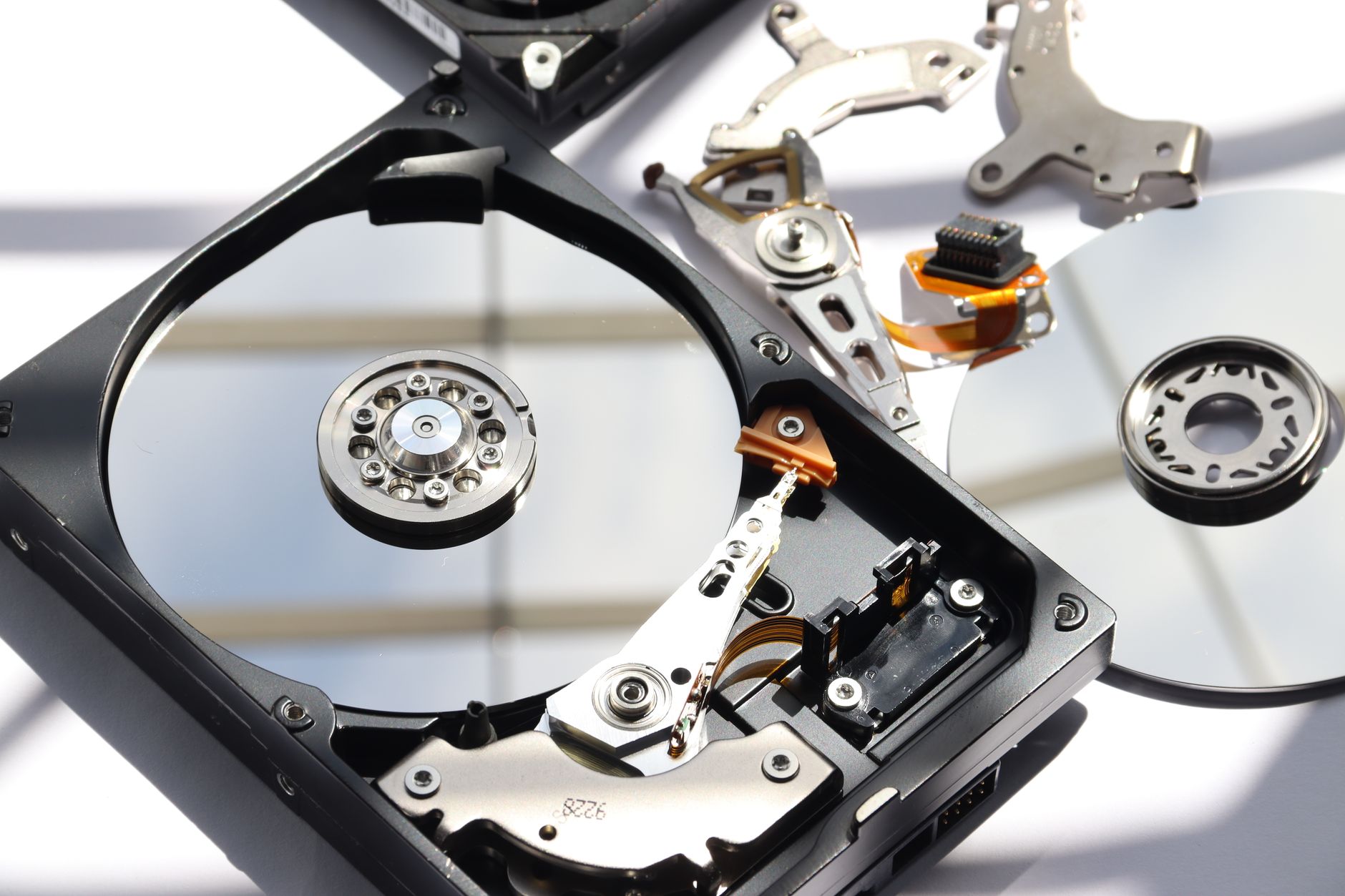
You delete a photo. You empty the trash. Panic sets in. But here is what most people do not realize: deleting a file does not actually erase the data. It just marks that space as “available for new stuff.” Until something overwrites it, your photo is still there, invisible but recoverable.
The clock is ticking. The more you use the device after deletion, the higher the chance the photo gets overwritten. Here is the recovery process, step by step.

Stop using the device immediately
This is the most important step and the one most people skip. Every new photo you take, every app you open, every file you download can overwrite the space where your deleted photo lives. Turn off the phone or stop using the computer right now. If the photos were on an SD card, take it out and set it aside.
Phone recovery: check the cloud first
Before you install anything, check your cloud backups. Google Photos has a trash folder that keeps deleted items for 60 days. iCloud has a “Recently Deleted” album that keeps photos for 30 days. Samsung Cloud, OneDrive, Dropbox — all have similar features. Most “lost” photos are sitting in a trash folder the user forgot existed.
Software that actually works
For computer drives and SD cards, Disk Drill (free version scans and previews; paid to recover) and Recuva (free, Windows only) are the most reliable. Install the recovery software on a different drive than the one you are recovering from — installing on the same drive can overwrite what you are trying to save. Run a deep scan. It may take an hour or more, but it reads every sector looking for file signatures.
For phones: connect to a computer
Android phones can be connected to a computer via USB in file transfer mode. Then use Disk Drill or Recuva to scan the phone’s storage like an external drive. iPhones are trickier — iOS does not expose the file system the same way. Your best bet on iPhone is the iCloud Recently Deleted folder or a third-party tool like Dr.Fone, which is not free but works when iCloud does not have the file.
📋 Quick Summary: Stop using the device immediately. Check cloud trash folders (Google Photos, iCloud) first — most deleted photos are there. Use Disk Drill or Recuva on a different drive for computer recovery. Connect Android phones via USB; iPhones may need a paid tool like Dr.Fone.