I Finally Stopped Using Cables to Transfer Photos From My Phone. Here Is How.

I have a drawer full of USB cables. None of them fit my current phone. Every time I needed to get photos onto my computer, I would spend five minutes hunting for the right cable, only to find it tangled with three other obsolete cables from phones I no longer own.
Meanwhile, five different wireless methods sat unused because I had not bothered to set them up.
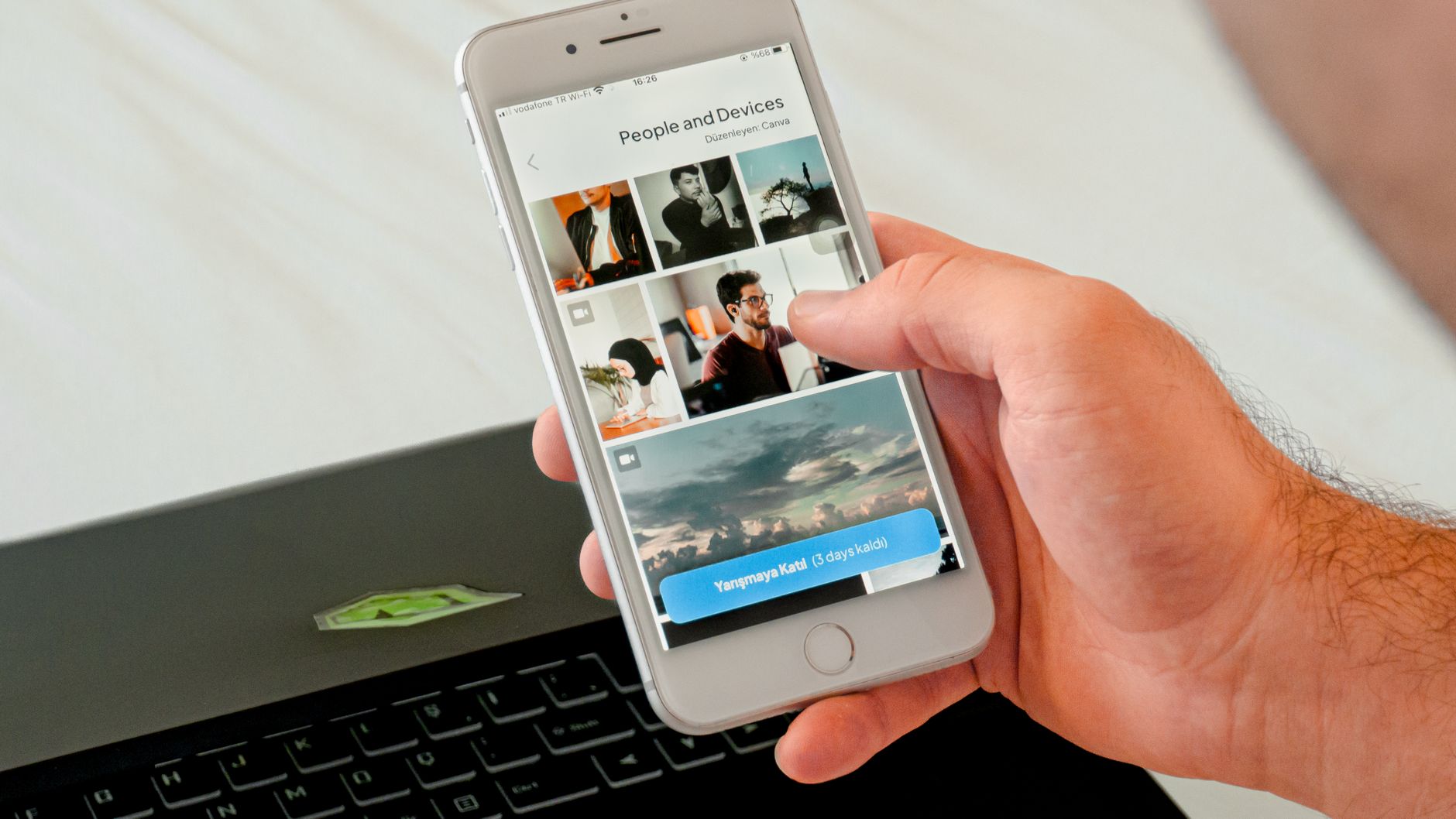
Option 1: Google Photos (Works Everywhere, Set and Forget)
Install Google Photos on your phone. Turn on Backup & Sync. Every photo you take uploads to your Google account automatically. On your computer, go to photos.google.com—everything is there. Download any photo or album with two clicks.
The free tier compresses photos slightly. If you want original quality, you pay for storage. For most people, the compressed version is indistinguishable from the original on a screen. I use this as my default.
Option 2: Local Network Transfer With Snapdrop
Open snapdrop.net on both your phone and computer while they are on the same Wi-Fi network. They find each other instantly. Tap your computer’s icon on the phone, select photos, and they transfer directly—no internet, no account, no cable.
This is the closest thing to AirDrop for non-Apple devices. Works between Android and Windows, Android and Mac, iPhone and Windows—any browser-to-browser combination. The files never touch a server.
Option 3: The USB Drive That Plugs Into Your Phone
If you have a massive batch—hundreds of photos or large video files—get a dual USB drive (USB-C on one end, USB-A on the other). Plug it into your phone, copy the photos, plug it into your computer. No Wi-Fi needed, no cloud upload time, no cable hunting.
I keep one of these in my bag for vacation photo dumps. A 64GB dual drive costs about $12.
Quick Summary: Use Google Photos Backup & Sync as your default, Snapdrop for instant local transfers without accounts, and a dual USB drive for bulk transfers—no cables needed ever again.