How to Stop Autocorrect From Ruining Your Texts Without Turning It Off
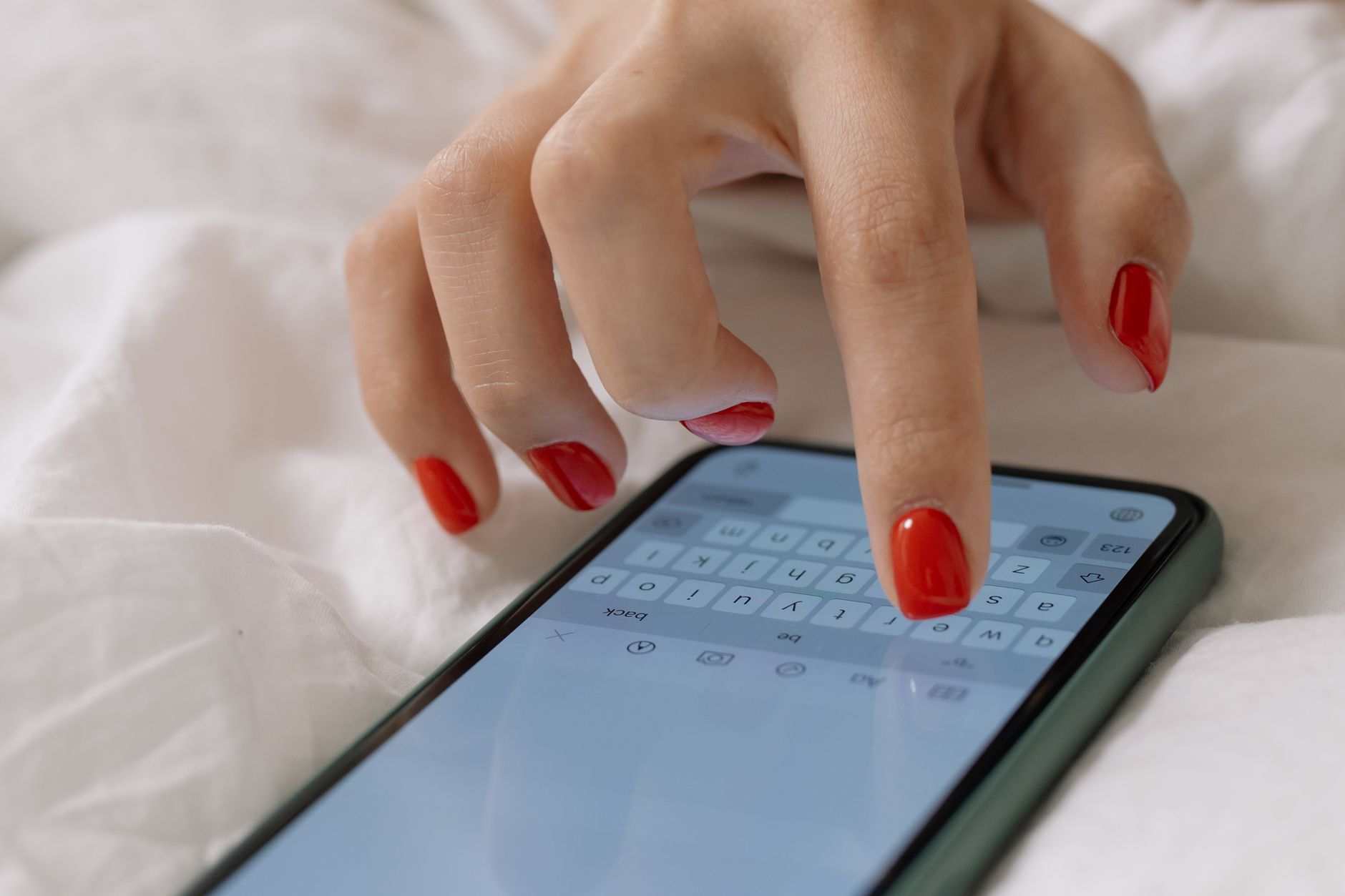
I texted my boss “I will be there in a sex” instead of “sec” last year. Autocorrect decided I meant “sex” and changed it the moment I hit send. I did not notice until she replied with a single question mark. We never spoke of it. I think about it at least once a week.
Turning autocorrect off completely is worse — you end up sending “teh” and “adn” to everyone. The fix is training it.
Autocorrect Learns From You — Feed It Better Data
Your phone’s keyboard learns the words you use most and the corrections you accept or reject. Every time you tap the suggested correction, you are telling it “yes, change my word to this.” Every time you tap the original word on the left side of the suggestion bar (the quoted one), you are telling it “no, leave my word alone.”
Most people just blindly accept corrections. Then they are surprised when the phone keeps “fixing” things the wrong way.
Text Replacement: Pre-program the Words You Use
Both iPhone and Android let you set up shortcuts that expand into full phrases. This also prevents autocorrect from messing with abbreviations you use constantly:
iPhone: Settings → General → Keyboard → Text Replacement. Add entries like “omw” → “On my way!” or “brb” → “Be right back.”
Android: Settings → System → Languages & Input → Advanced → Personal dictionary. Add words you never want corrected.
I added my street name, my dog’s name, and my weird work acronyms. No more “Shih Tzu” becoming “Shut Tzu” or “Shot To.”
Reset If It Is Hopelessly Broken
If your autocorrect has learned so many bad habits that it is doing more harm than good, reset the keyboard dictionary:
- iPhone: Settings → General → Transfer or Reset → Reset → Reset Keyboard Dictionary.
- Android: Settings → Apps → Gboard → Storage → Clear Data.
This wipes everything it has learned. Start fresh. Be deliberate about what you accept for the first week and it will settle into a much better state.
📋 Quick Summary: Train your autocorrect by tapping the original word (not the suggestion) when it guesses wrong. Set up text replacements for your slang, names, and acronyms. If all else fails, reset the keyboard dictionary and start fresh.