How to Read QR Codes from Screenshots Without a Second Phone
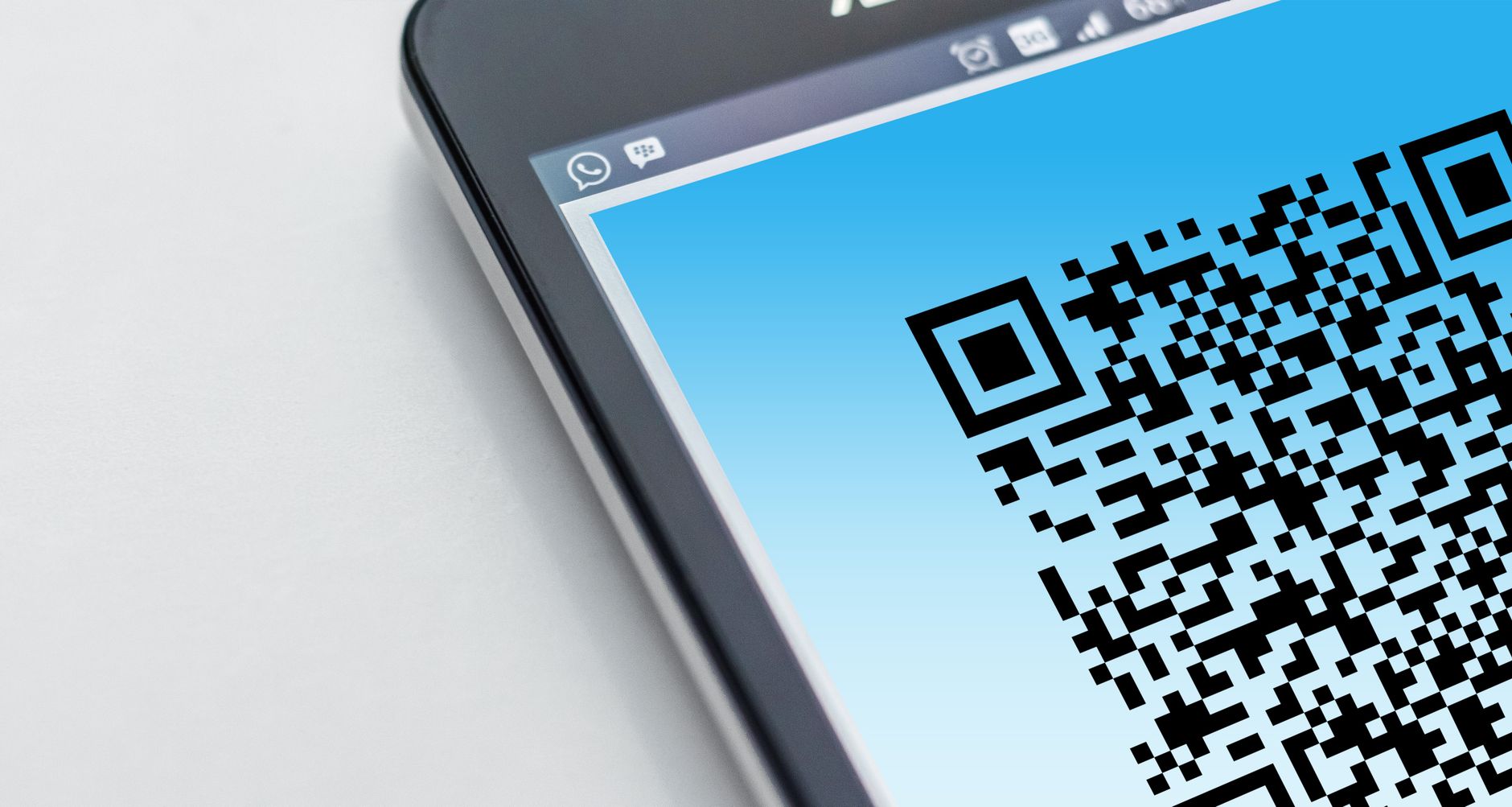
Someone sent me a QR code in an email last week. It was for a conference check-in. The email said “show this at the registration desk.” But the QR code was an image in the email body. I could not scan my own phone screen with my own phone camera — that required two phones, which I did not have. I sat there holding my phone at arm’s length, trying to angle my laptop screen toward the camera, feeling like an idiot.
There are actually several ways to read a QR code from a screenshot or an image on your phone. Here are the easiest ones.
Google Lens — Already on Your Phone
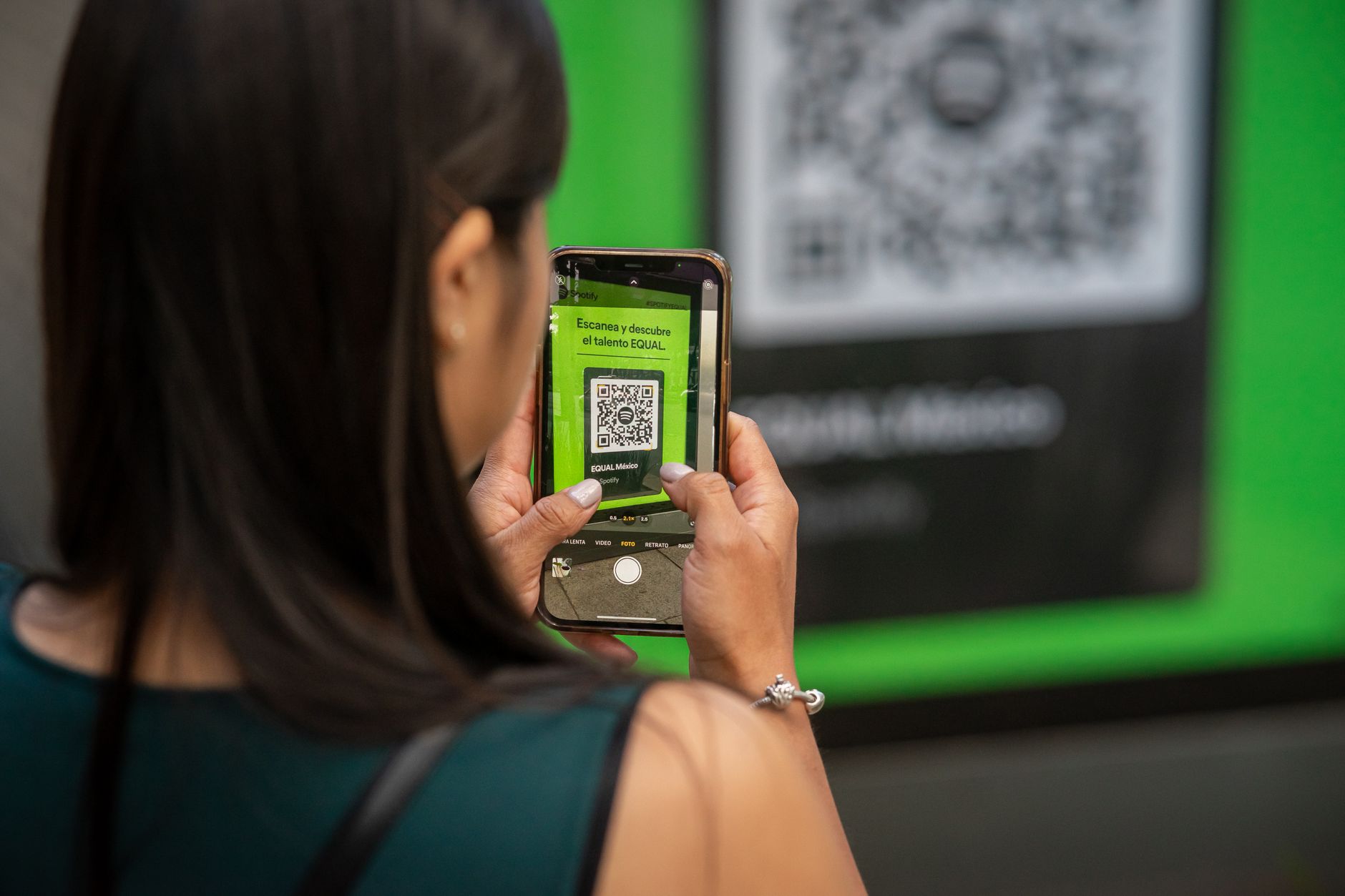
If you have an Android phone, Google Lens is built into the camera app and the Photos app. Open the screenshot in Google Photos, tap the Lens icon, and it will scan the QR code and give you the link. On iPhone, you can download the Google app (free) and use Lens from there — the same feature works.
This is the fastest method for most people. It takes about five seconds and works on any QR code you have saved as an image.
iPhone Live Text
iPhones running iOS 15 and later have Live Text built into the Photos app. Open the screenshot, tap and hold on the QR code in the image. A menu pops up with the detected link. Tap it to open. If the QR code is small or blurry, pinch to zoom first.
Online QR Decoders
If neither of the above works — or if you are on a computer — go to a site like ZXing Decoder Online. Upload the screenshot. It reads the QR code and shows you the content. These sites process the image in your browser, not on a server, so sensitive QR codes stay local. But do not upload anything with a private key or personal information anyway.
Screenshot the Screenshot
On some phones, you can actually scan a QR code from your own screen using the recent apps multitasking view. Open the image, switch to the camera app without closing the image, and sometimes the camera will pick up the QR code from the preview thumbnail. This is unreliable but works in a pinch.
Quick Summary: Use Google Lens from Photos — works on Android and iPhone via the Google app. iPhone Live Text also handles QR codes natively. For computers, use ZXing Decoder Online. No second phone needed.