The Quick Way to Remove Bloatware From a New Windows PC
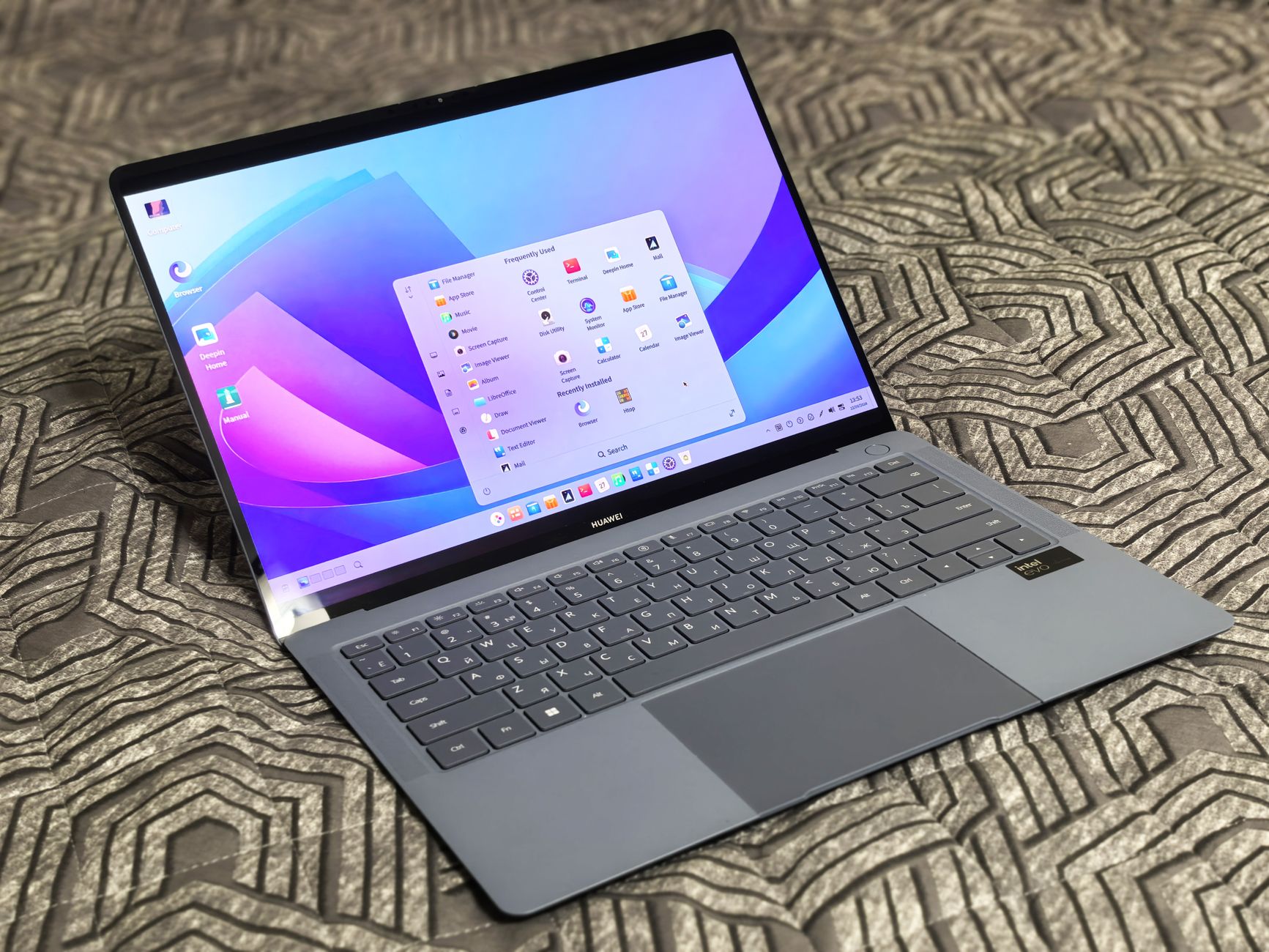
Every new Windows PC comes with a surprise collection of apps nobody asked for. A trial of this, a free game of that, and three different apps that all want to be your news feed. I used to live with it. Now I spend the first twenty minutes of any new PC removing the junk, and it makes the machine feel twice as fast.
Start with the official uninstall list
Open Settings, then Apps, then Installed apps. Scroll the list and uninstall anything you did not install yourself. Most bloatware uninstalls cleanly right here. Look for the brand name of the PC maker, trial software, and apps with names like News, Weather, or Get Started that you will never open. I uninstall in batches and it takes about ten minutes.

PowerShell for the stubborn stuff
Some preinstalled apps refuse to uninstall through Settings. PowerShell can remove them with a single command. Right click the Start button and open Terminal as administrator, then run Get-AppxPackage to list every app. Find the package name of the app you want gone and run Remove-AppxPackage with that name. It sounds technical but it is copy and paste. Search for the app name plus the command and you will find the exact line.
Turn off the junk that is not an app
A lot of new PC annoyance is not apps but settings. Turn off startup programs you do not need in Task Manager under Startup apps. Disable notifications from apps that are just trying to sell you things. And in Settings under Privacy, review which apps run in the background. Fewer background apps means better battery life and a snappier machine. My biggest speedup came from killing startup apps, not uninstalling anything.
What to keep
Do not go overboard and delete system tools. Keep the Microsoft Store, Edge, and the built in security software. Windows Defender is genuinely good and removing it leaves you unprotected. Also keep the PC maker’s update and warranty apps, since those can matter for driver updates. Bloatware removal is about the junk, not about gutting the system.
- Uninstall obvious junk through Settings, Apps, Installed apps.
- Remove stubborn preinstalled apps with PowerShell commands.
- Disable unnecessary startup programs in Task Manager.
- Review background app permissions in Settings, Privacy.
Twenty minutes of cleanup on day one saves you months of annoyance. My current PC has none of the original junk, boots in seconds, and I never think about the apps that came with it. That is exactly how a new computer should feel.
📋 Quick Summary: Uninstall preinstalled junk through Settings, use PowerShell for stubborn apps, disable unnecessary startup programs, and keep the built in security tools.