How to Scan Documents with Free Apps Instead of a Scanner
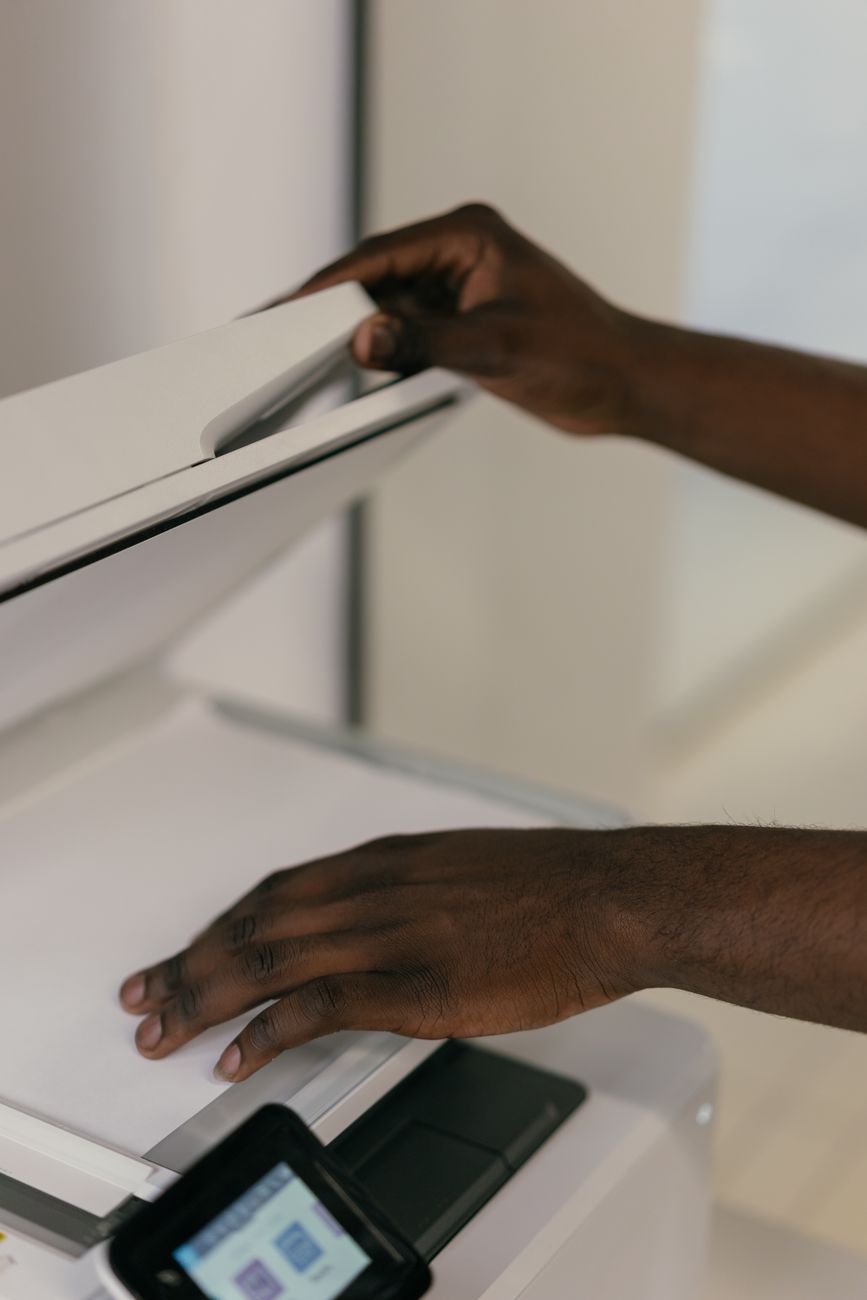
My printer died last year, and with it went my scanner. I needed to send a signed lease to my landlord that week, and I did not want to buy another bulky machine. Turns out my phone had been carrying a scanner the whole time. I have not owned a scanner since.

Modern phone scanning apps use the camera to create clean, straight, readable PDFs. The quality is good enough for contracts, receipts, and even most forms.
The Built-In Option You Already Have
You may not need to install anything. iPhone Notes can scan documents right in the app: open a note, tap the camera icon, choose Scan Documents, and hold the phone over the page.
Android has a similar feature in Google Drive: tap the plus button, choose Scan, and it captures straight into your Drive. Both are free and both handle the edge detection automatically.
How to Get a Clean Scan
The app does the heavy lifting, but a few habits make the scan look professional:
- Place the paper on a flat, dark surface so the edges are easy to detect
- Fill the frame with the paper before you tap capture
- Shoot in good light, window light is better than a lamp
- Use the auto-enhance option if your app has one
I scan receipts on the kitchen counter now instead of the black desk, and the difference in edge detection is huge.
What to Use for Lots of Pages
For bigger jobs, dedicated apps like Adobe Scan or Microsoft Lens are free and can scan multiple pages into one PDF, then name it and file it into a folder.
I scanned a forty-page document with Microsoft Lens last month and it took under five minutes, then sent itself to my email as one PDF. Good enough for me, and my dead printer stays dead.
📋 Quick Summary: Use iPhone Notes or Google Drive to scan for free, shoot on a flat dark surface in good light, and use Adobe Scan or Lens for long documents.