Transfer Phone Photos to Your Computer Without a Cable
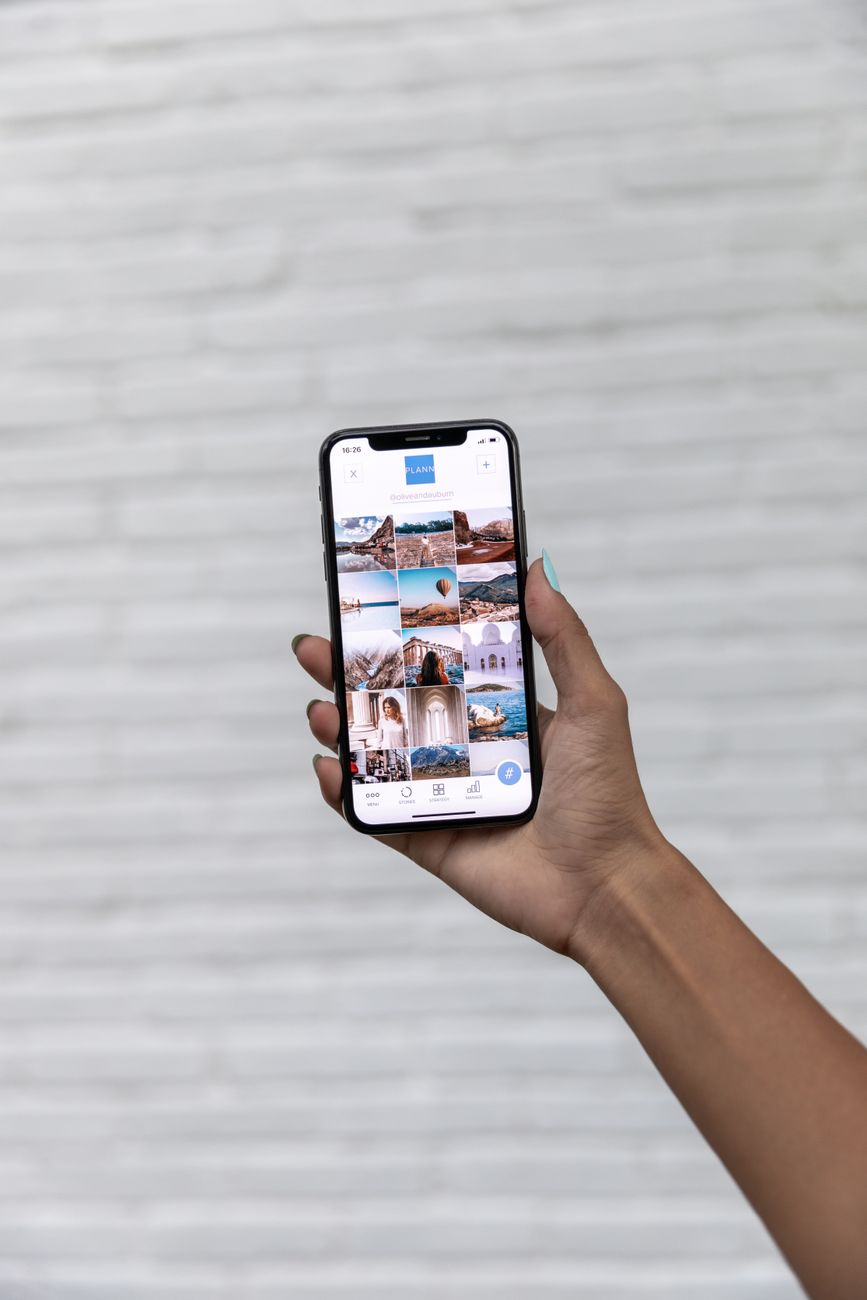
I had two thousand photos trapped on my phone because I could never find the right cable. When my storage filled up, I finally figured out how to move them to my computer without plugging anything in. It took five minutes to set up and now it happens on its own.
Why cables are a pain
Different phones need different cables, and half the time the computer does not recognize the device. Wireless transfer skips all of that.
The easiest free ways
- Use Google Photos or iCloud to back up automatically, then download from the web on your computer.
- Use a free cloud drive like Google Drive or Dropbox to sync a folder.
- Use a shared folder on your home Wi-Fi network to drag files straight across.

I went with Google Photos, which backs up every shot the moment I take it. On my computer I just open the website and download the ones I want. No cable, no app to install.
One thing to watch
Free cloud storage is not unlimited, so check what you are signing up for. Google Photos counts toward your storage limit these days. I set mine to upload a compressed version, which is plenty for sharing and keeps me under the free cap.
Now my phone has room again, and my photos are safe if the phone ever dies.
📋 Quick Summary: Back up photos to Google Photos or iCloud and download from the web, or sync a cloud folder to transfer without a cable.