Why Your WiFi Keeps Dropping and How to Fix It in 5 Minutes
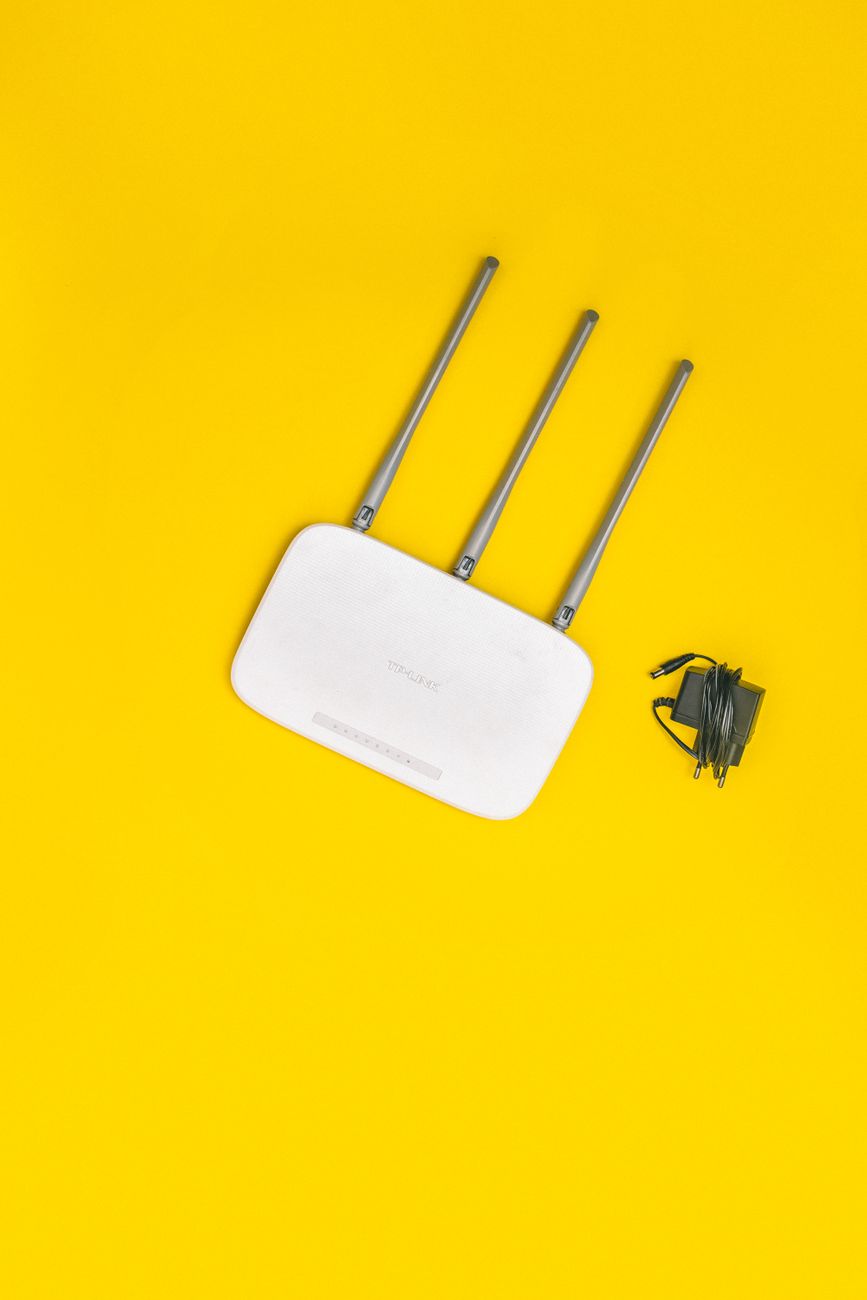
My WiFi would drop every evening around 7 p.m. — right when we sat down to watch something. The video would buffer. The router lights would blink. I would unplug the router, plug it back in, and it would work for about twenty minutes before dropping again. This went on for weeks before I actually investigated instead of just rebooting.
The fix took five minutes and the problem has not come back. Here is what was actually happening.
Your neighbors are on the same channel
WiFi routers broadcast on channels — like radio stations. Most routers default to the same channel (usually 6 on the 2.4 GHz band). If you live in an apartment or a neighborhood with houses close together, everyone’s routers are shouting on the same frequency. At peak hours — evenings when everyone is home streaming — the channel gets congested and your connection drops.
The fix: log into your router (the address is usually check the sticker on the bottom of your router — check the sticker on the bottom). Find the WiFi settings and change the channel from “Auto” to a specific number. For 2.4 GHz, channels 1, 6, and 11 are the only ones that do not overlap. Try each one and see which performs best. For 5 GHz, there are many more channels and most routers handle this better on their own.
Use the 5 GHz band if you can
If your router supports dual-band (most do now), make sure your devices are connecting to the 5 GHz network, not the 2.4 GHz one. 5 GHz is faster, less congested, and has shorter range — which is actually good because it means your neighbor’s 5 GHz signal is not reaching your house. The downside is that 5 GHz does not go through walls as well, so if your router is in the basement and you are on the second floor, you might need to stay on 2.4 GHz or add a mesh extender.
Restart actually works — but do it right
Unplug both the router and the modem (they might be the same box). Wait a full 60 seconds — not 10, not 30. Sixty seconds gives the capacitors time to fully discharge and clears the router’s memory. Plug the modem back in first, wait for all its lights to stabilize, then plug in the router. This full power cycle fixes most intermittent connection issues.
My router has been stable for months. No more buffering mid-episode. My spouse no longer gives me the look.
📋 Quick Summary: Change your WiFi channel to 1, 6, or 11 to avoid neighbor congestion. Use 5 GHz if your devices support it. Full power cycle: unplug for 60 seconds, modem first, then router.