The Printer Setting That Uses Half the Ink
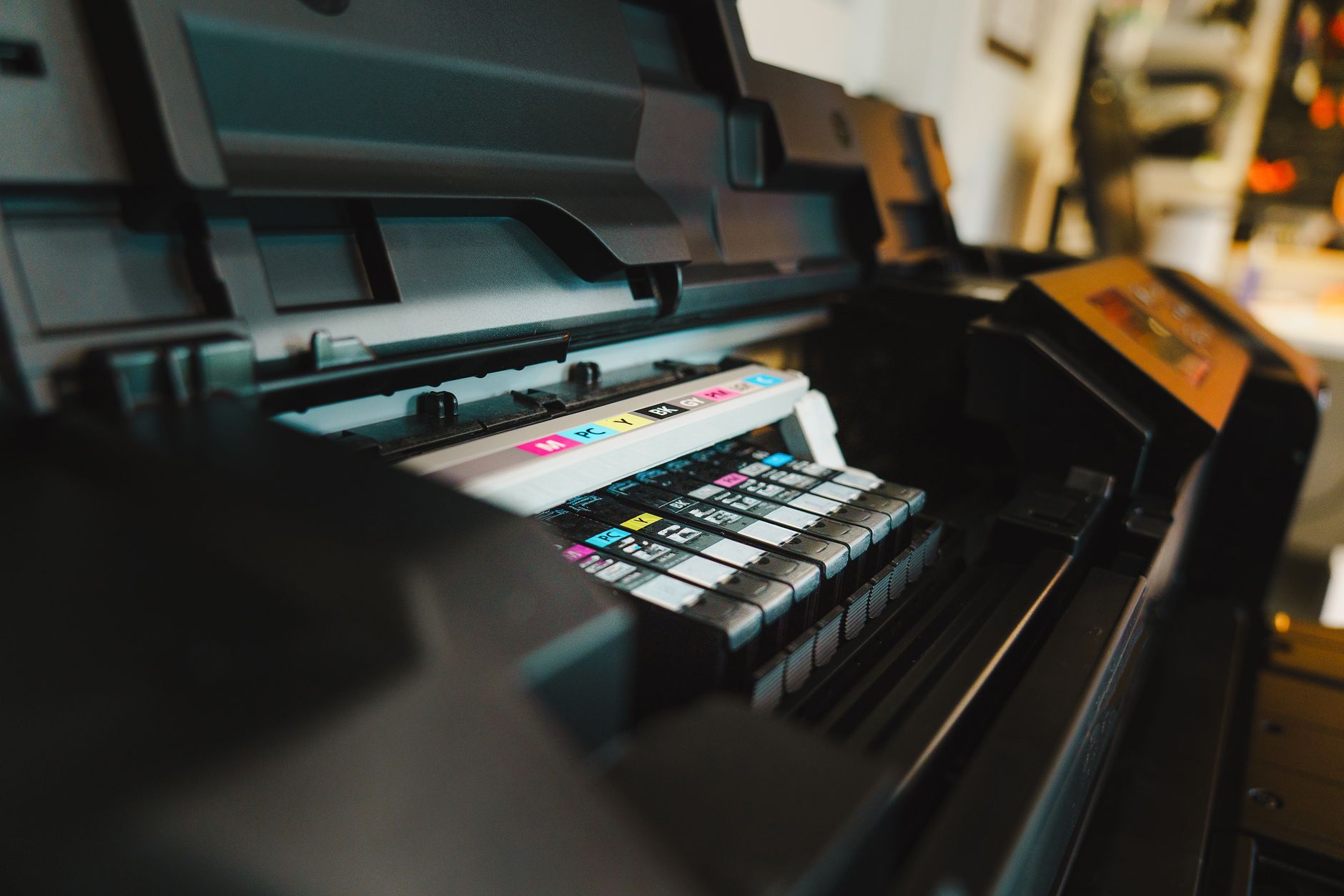
Printer ink costs more than champagne by volume. I am not exaggerating — some cartridges work out to over $2,000 per gallon. I used to replace my cartridges every few months until I found a single setting buried in my printer preferences that cut my ink usage nearly in half without making my documents look terrible.
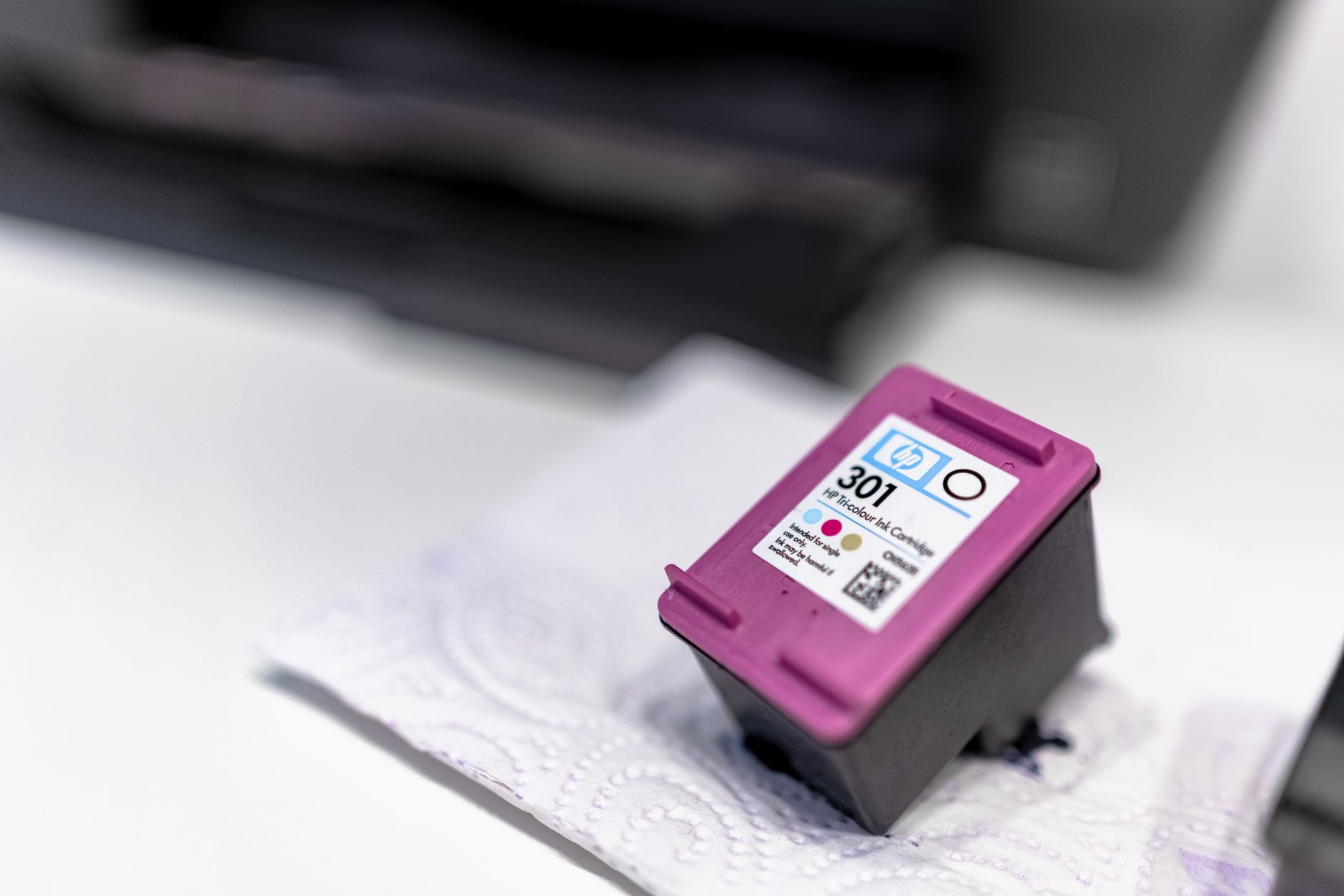
The setting: draft mode (or “toner save”)
Almost every printer has a draft mode or economy mode. On some printers it is called “toner save” if it is a laser printer. This setting reduces the amount of ink or toner laid down on the page. The print comes out slightly lighter, but for anything that is not a final presentation or a photo, it is completely fine.
Where to find it: open your print dialog, look for “Print Quality,” “Quality Settings,” or “Preferences.” Change it from “Normal” or “Best” to “Draft” or “Economy.” On a Mac, it is often under “Paper Type/Quality” or “Color Options.” On Windows, look for “Printing Preferences” in the printer properties.
What draft mode looks like
Text is maybe 10 percent lighter. You will notice the difference if you hold it next to a normal print. You will not notice reading it on its own. Charts and graphs look fine. Photos look bad — do not print photos in draft mode. But for boarding passes, recipes, to-do lists, articles you want to read on paper, shipping labels, and 90 percent of what most people actually print, draft mode is all you need.
I keep draft mode as my default. When I need a nice print — a resume, a letter, something I am framing — I switch to normal for that one job. My ink cartridges now last about twice as long as they used to.
Other ink-saving tricks
- Print in grayscale for text documents. Color ink is more expensive than black. Set your default to black and white, switch to color only when you need it.
- Ignore the “low ink” warning. Printers declare cartridges empty long before they actually are. Keep printing until the quality is unacceptable, not until the printer nags you. Some printers have a reset procedure to override the empty warning.
- Use “Print Selection” instead of whole pages. Highlight only the text you need and print that instead of all 12 pages of a web article.
- Shake the cartridge. When a toner cartridge starts fading, take it out, gently rock it side to side to redistribute the toner powder inside. You can often get another 50 to 100 pages.
📋 Quick Summary: Set your printer to “draft” or “economy” mode as the default. Switch to normal only for photos or final documents. Print in grayscale, ignore early low-ink warnings, and shake toner cartridges to extend their life.