How to Stop Apps From Draining Your Battery in the Background
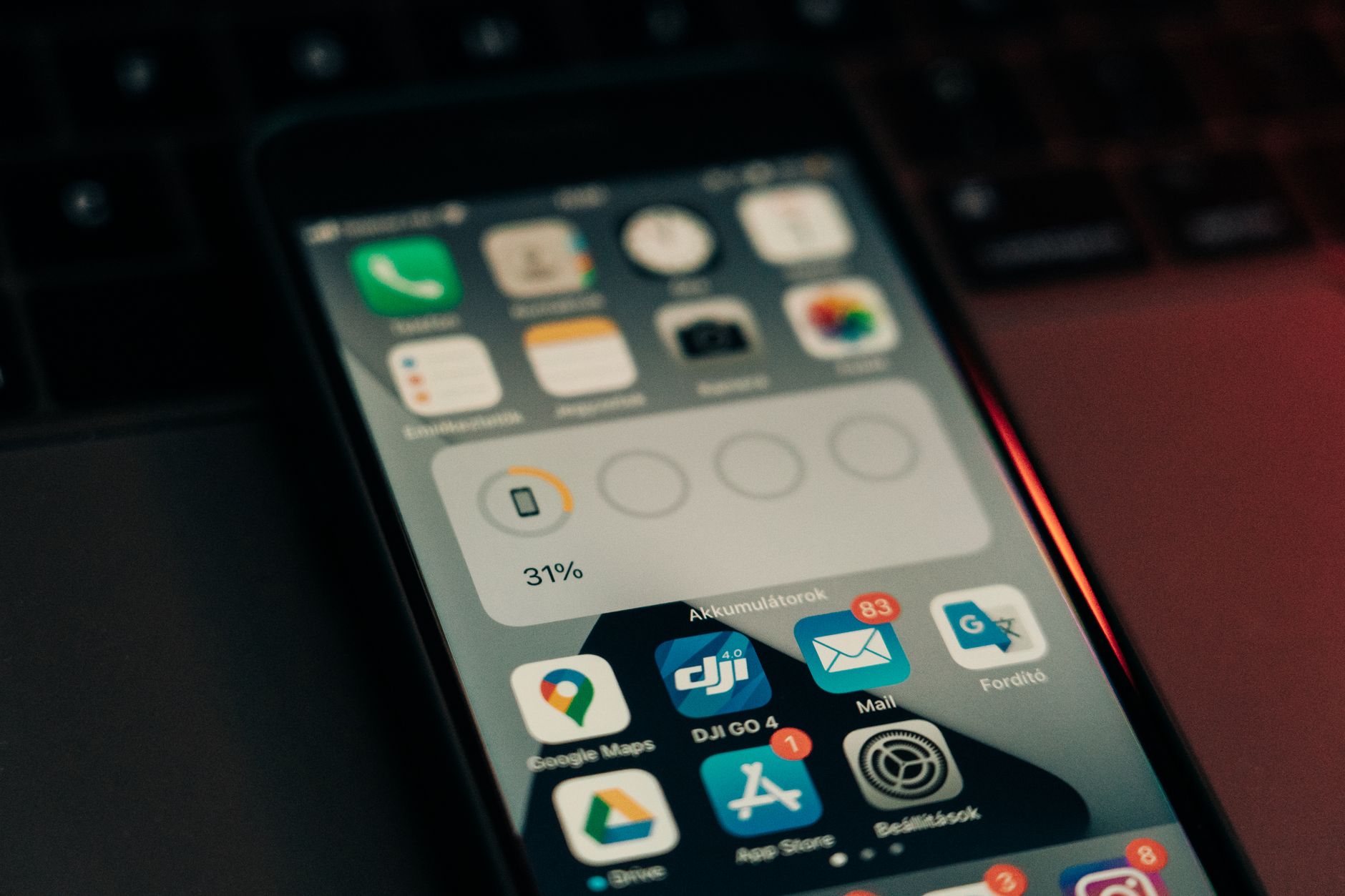
My phone went from eighty percent to fifteen percent during a three-hour meeting while sitting untouched in my pocket. When I checked the battery usage after, a weather app I had opened once that morning had consumed twenty-three percent of the battery running in the background. It was checking my location every few minutes to update the local forecast. I was indoors all day. The weather did not change.
Background app activity is the biggest silent battery drain on most phones. Apps refresh, track location, and ping servers even when you are not using them. Here is how to shut that down without uninstalling everything.
Check What Is Actually Draining
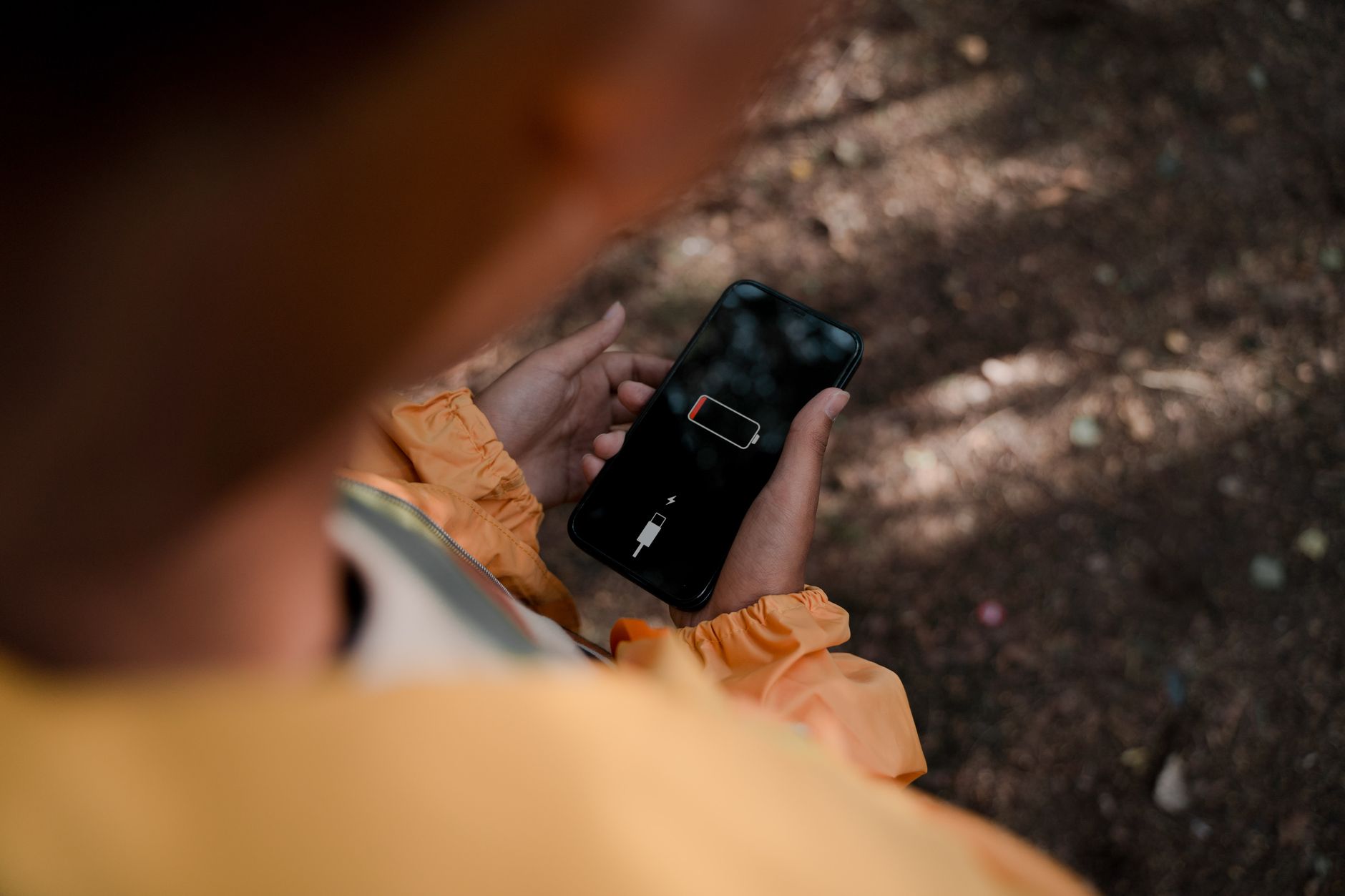
Go to Settings > Battery. Both iPhone and Android show you exactly which apps used the most power in the last twenty-four hours and the last week. You might be surprised. It is rarely the apps you use the most — it is the ones running in the background that you forgot about.
iPhone Fixes
- Background App Refresh: Settings > General > Background App Refresh. Turn it off entirely or toggle it off for individual apps. Your messaging and email apps need it to give you notifications. A weather widget, a game, and a shopping app do not.
- Location Services: Settings > Privacy > Location Services. Switch most apps from “Always” to “While Using” or “Never.” A flashlight app has no reason to know where you are.
- Mail fetch settings: Settings > Mail > Accounts > Fetch New Data. Switch from “Push” to “Fetch” and set it to every thirty minutes or manually. Push email keeps a constant connection open. Fetch checks on a schedule.
- Low Power Mode: Settings > Battery > Low Power Mode. This pauses background refresh, mail fetch, and some visual effects. Keep it on if you know you have a long day ahead.
Android Fixes
- Adaptive Battery: Settings > Battery > Adaptive Battery. Turn it on. The phone learns which apps you actually use and restricts background activity for the rest.
- App-specific background restriction: Settings > Apps > [select app] > Battery > Background restriction. Set it to “Restricted” for apps you do not need running in the background.
- Location: Settings > Location > App permissions. Same rule — “While using” or “Never” for most apps.
- Unused app permissions: Android has a setting to automatically remove permissions from apps you have not opened in a few months. Turn it on under Settings > Apps > Unused apps.
The Nuclear Option
Delete apps you have not opened in a month. They are not just taking up storage — some of them are pinging servers and refreshing data even if you forgot they exist. I cleared out twelve apps after checking my battery stats and gained about fifteen percent more battery life at the end of a typical day.
That weather app is now set to update only when I open it. I check the weather twice a day. It does not need to know where I am every five minutes.
📋 Quick Summary: Turn off Background App Refresh for non-essential apps, limit Location to “While Using,” switch email from Push to Fetch, turn on Adaptive Battery (Android) or Low Power Mode (iPhone).