Clean Your Computer Fans Before Your Machine Overheats
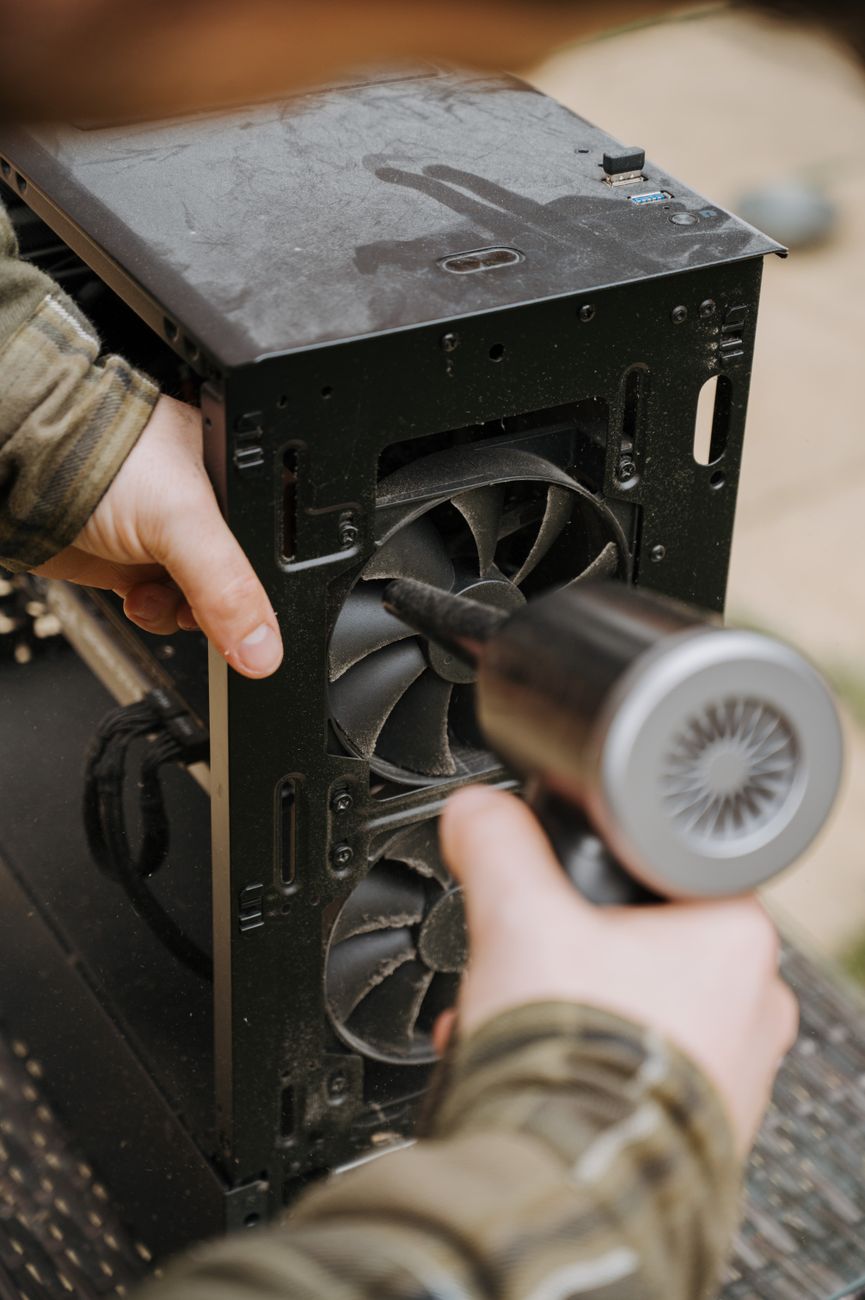
My desktop computer started shutting down in the middle of video calls. No warning, no blue screen — just black. I assumed it was old. I started shopping for a replacement. Then a friend who builds PCs asked if I had ever cleaned the fans. I opened the case. The CPU cooler was a solid block of dust. It looked like a gray felt blanket wrapped around the heatsink.
Why dust kills computers
Your computer moves heat. The CPU and GPU generate it, the heatsinks absorb it, and the fans blow it out of the case. Dust is an insulator. It coats the heatsink fins and traps heat instead of releasing it. The fans spin faster, the temperatures climb, and eventually the processor throttles its own speed to avoid cooking itself. When even throttling is not enough, it shuts down.
High heat also degrades components over time. Capacitors bulge. Thermal paste dries out. A computer that runs hot at two years old might have lasted five with regular cleaning.
What you need
- Canned air or an electric duster
- Isopropyl alcohol, 90% or higher
- Cotton swabs and a soft brush
- Phillips head screwdriver
- A vacuum cleaner is optional — but only for the dust that has already settled on the floor of the case. Never let a vacuum nozzle touch a circuit board. Static discharge will fry components.
Desktop cleaning — step by step
- Shut down and unplug. Press and hold the power button for ten seconds after unplugging to discharge residual power.
- Open the case. Most cases have thumbscrews on the back. Slide the side panel off.
- Hold the fans still. This is important. When you blast a fan with compressed air, it spins. A spinning fan generates electricity that feeds back into the motherboard. Use a finger or a pencil to hold the blades in place while you spray.
- Blow out the heatsinks. Start with the CPU cooler. Spray from the inside out — push the dust toward the exhaust side of the case, not deeper in. The dust cloud will be impressive. Do this outside or near an open window.
- Clean fan blades. Cotton swab dipped in isopropyl alcohol. Wipe each blade individually. Canned air alone will not remove the caked-on gray film.
- Hit the power supply. Spray through the intake and exhaust grilles. Do not open the power supply unit itself — there are capacitors inside that hold charge even when unplugged.
- Blow out the GPU. Same process. Hold the fans, spray through the heatsink fins, wipe blades.
Laptops are trickier
Most laptops are not designed to be opened. But you can spray compressed air into the intake vents — usually on the bottom or sides — and the exhaust vents — usually at the hinge. Short bursts. You will see dust puff out. This is not a deep clean but it helps.
If the laptop is still overheating after external cleaning and the fan is screaming at full speed constantly, the internal heatsink is probably clogged. At that point, look up a disassembly guide for your specific model. Some laptops make this easy. Some require removing twenty screws and the keyboard. Know what you are getting into.
My desktop is five years old now. Still running. Cleaned every six months. It has never shut down on me again.
Quick Summary: Hold fans still while spraying compressed air. Blow dust out of heatsinks from inside outward. Clean fan blades with isopropyl alcohol. Do this every six months.