Bluetooth Settings That Drain Your Battery the Most — And the One Switch That Fixes It
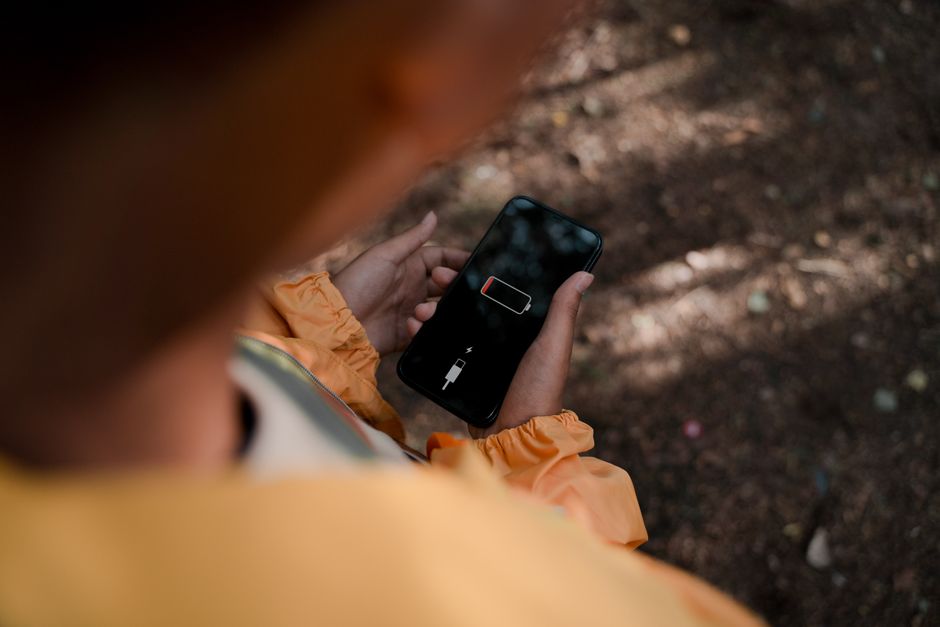
My phone was dying by 2pm every day. I checked the battery usage screen — nothing looked unusual. I dimmed the screen, closed background apps, turned off location services. Still dying by 3pm. Then I looked at Bluetooth. My phone was connected to nothing, but Bluetooth had been actively scanning for devices every few seconds for probably months.
Bluetooth is not the battery hog it used to be — modern Bluetooth Low Energy is genuinely efficient. But certain settings turn it from efficient into a constant drain. Here is what to check.
The Scanning Setting Nobody Knows About
On both Android and iPhone, there is a setting that lets apps scan for Bluetooth devices even when Bluetooth is turned off. It is used for location services — stores and museums use Bluetooth beacons to track foot traffic and send notifications. Your phone is constantly listening for these beacons whether you want it to or not.
To turn it off:
- Android: Settings → Location → Location Services → Wi-Fi and Bluetooth scanning. Turn both off.
- iPhone: Settings → Privacy → Bluetooth. You will see a list of apps that have requested Bluetooth access. Revoke any that do not obviously need it. While you are there, Settings → Privacy → Location Services → System Services → turn off Bluetooth Location.
This alone bought me about an hour of extra battery per day. And I lost nothing — my GPS still works, my maps still navigate, my Bluetooth still connects to my headphones when I turn it on manually.
Connected Devices You Forgot About
Your phone stays connected to paired devices as long as they are in range — even if you are not actively using them. I found my phone was connected to a Bluetooth speaker in the garage that I had not used in two weeks. The speaker was plugged in and my phone was maintaining a connection through two walls for no reason.
Go to your Bluetooth settings and look at the list of paired devices. Unpair anything you do not use regularly. You can always re-pair later.
Audio Codec Settings
If you use Bluetooth headphones, your phone and headphones negotiate which audio codec to use each time they connect. Higher-quality codecs like LDAC and AptX HD use more processing power — which means more battery. If you are listening to podcasts or audiobooks, you do not need lossless audio quality. Switching to the standard SBC or AAC codec saves a small but real amount of battery over a full day of listening.
On Android, this is in Developer Options under Bluetooth Audio Codec. On iPhone, AAC is the default and you cannot change it, which is honestly fine for most people.
The Nuclear Option
If you do not use any Bluetooth accessories — no headphones, no smartwatch, no car connection — just turn Bluetooth off entirely. Not from the quick settings toggle (which sometimes just disconnects but leaves the radio on). Turn it off in the full Settings app. The difference between “Bluetooth on but disconnected” and “Bluetooth radio off” is small — maybe 2-3% per day — but it adds up.
📋 Quick Summary: Turn off Bluetooth and Wi-Fi scanning in Location settings — this is the biggest hidden drain. Unpair devices you do not use regularly. Switch audio codec to SBC/AAC for podcasts. If you never use Bluetooth, turn it off in Settings, not quick toggles.